 in the
Apple Device touchscreen. The first time you are run ES Optimizer Mobile,
you will receive a figure like the one below:
in the
Apple Device touchscreen. The first time you are run ES Optimizer Mobile,
you will receive a figure like the one below:If you possess multiple hand held devices and you want to use all of them with ES Optimizer, all devices will need to be configured to work with the database used in ES Optimizer.
Below are the steps to configure ES Optimizer Mobile for your Apple Device:
1. Tap
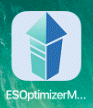
the ES Optimizer Mobile icon in the
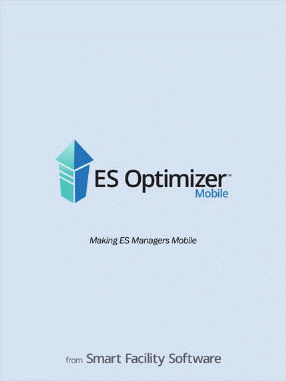
Apple Device touchscreen. The first time you are run ES Optimizer Mobile,
you will receive a figure like the one below:
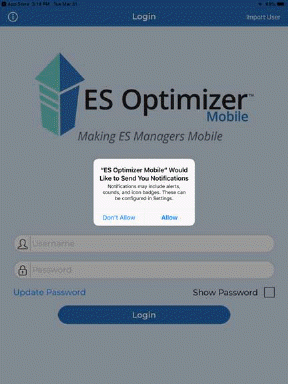
2. Answer the prompt “Yes” to accept Notifications from the application.
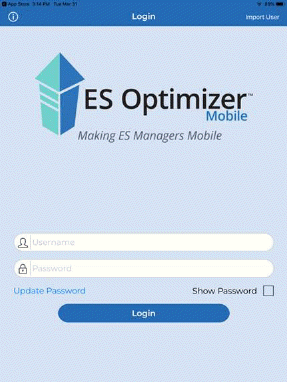
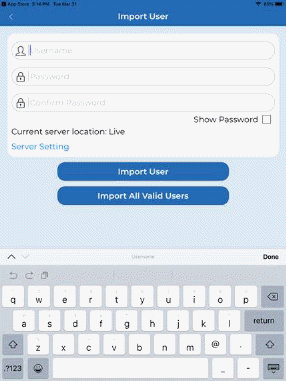
3. Next you will need to Import one or more users into the app. Choose the “Import User” button in the top right corner to see screen shown below at right.