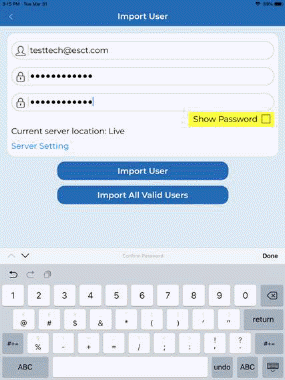
4. If you wish to import just one user simply enter your login credentials for ES Optimizer, [your email address] in the username field and your password in both the password and the confirm password box as shown below:
Note: You can use the “Show Password” checkbox to ensure your passwords match.
5. Tap on “Import User” button. When properly entered, you will receive the figure below:
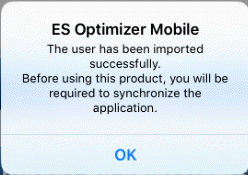
6. Tap on the OK button.
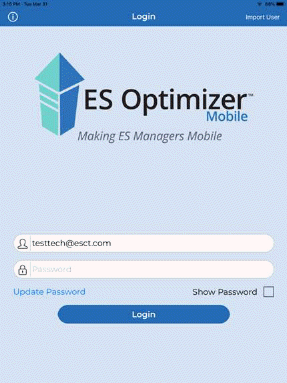
7. After importation, you will be routed back to the log in screen for ES Optimizer Mobile as shown in the figure below. Enter your password and tap on the Login button.
8. If you have purchased the Service Optimizer Add-On you will receive this prompt as shown below:
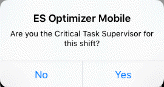
Note: If you change your mind
and wish to change this setting you do so within the app in the Service
Optimizer Module using the Select Assignment or Coverage Area icon  .
.
Each time you enter the Service Optimizer module you will receive similar prompts.
Note: once you select an Assignment or Coverage area subsequent logins will ask if you are working the same assignment and/or Coverage area. Just answer the prompts as desired.
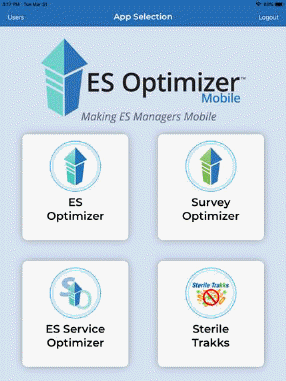
9. After answering the dialogue box shown above you will be presented with the App Selection menu. Only the options purchased will show.