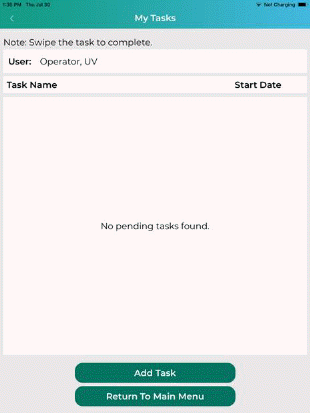
The Tasks button shows the employee all the tasks supervisors have given them in addition to their normal routine. Tapping on the Tasks button opens this screen:
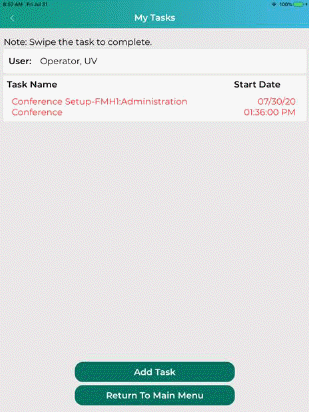
From here, users can view their tasks, add their own tasks, or complete them using the Swipe function. Users can also get additional details about their tasks by tapping on the task name as shown below:
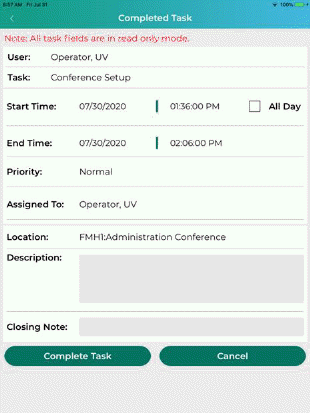
User is able to check the Complete Task button and enter a closing note if desired and then tap the “save” button.
User may also swipe the task description from right to left to show the complete button. User may then complete the task by tapping “Complete Task” as shown below:
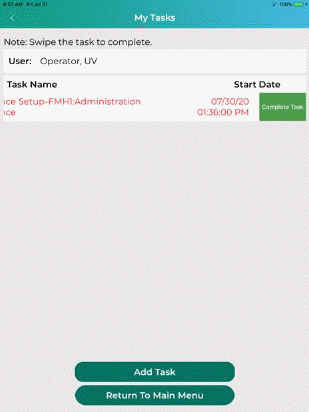
A synchronization will occur and the task will be complete.