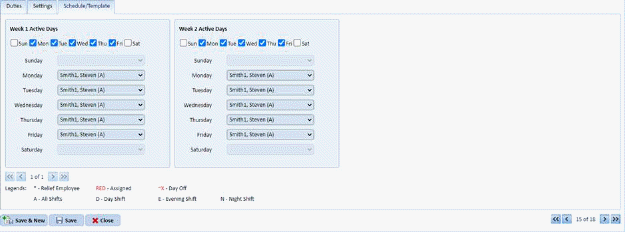
The Schedule/Template Tab provides the user more control in setting up the template schedule. Each daily assignment will have a schedule box for each week in the rotation. The user can select the Employee for each day that is active. That employee will appear on that day of rotation in the Schedule tab in the Personnel module.
The above figure shows ‘Steven Smith (A)’ working 5 days a week for both weeks of the rotation. The rest of the days are Unassigned or blank. Unassigned means there is no one assigned for those days. Blank means that the days are not active.
To make changes to the template, simply do the following steps:
1. Select the assignment with the schedule template you wish to update.
2. Ensure that the day in question is active:

3. Specify the employee working that assignment for a selected day of the week:
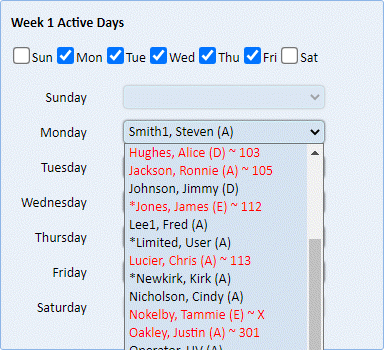
In this case, Cindy Webster can be changed to another employee.
4. Repeat steps 2 and 3 for all other days you want to update.
5. Click
on the Save button to save the
changes. Otherwise, click on the Undo button
to save the
changes. Otherwise, click on the Undo button .
.
6. Repeat steps 1 through 5 for all other assignments you want to update.