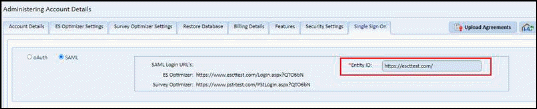
Registration-
Add/Edit Account (Single Sign On)
- The setting is added on ESO Registration Add/Edit Account to select SSO authentication method (oAuth or SAML).
- When user select SAML, below settings are shown to add SAML configuration.
o SAML Login URL’s - User can use the SAML Login URLs to login to ES Optimizer/Survey Optimizer using SSO SAML.
o Entity ID - This requires communicating with tenant app.
- Based on the auth method selection, user can import SSO setting with SAML or oAuth.
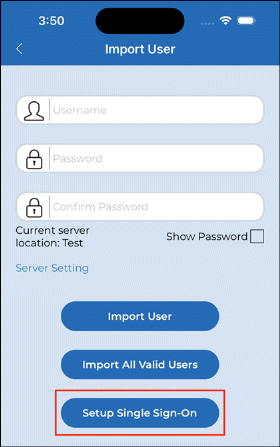
1. New 'Setup Single Sign-On' button is added on the import user screen to fetch SSO settings.
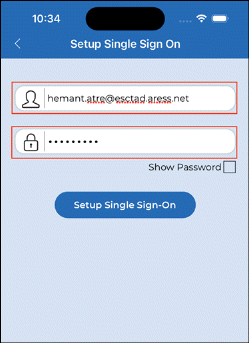
2. The user can enter a valid SSO username and password and click on the 'Setup Single Sign On' button. This opens the Microsoft login window to validate the user.
3. When clicking on the 'Setup Single Sign-On' button,
a. If OAuth is enabled from the web, then Microsoft requests permission to share data with Microsoft.
b. If SAML is enabled, then you will directly redirect to Microsoft login page. Please refer below screenshot.
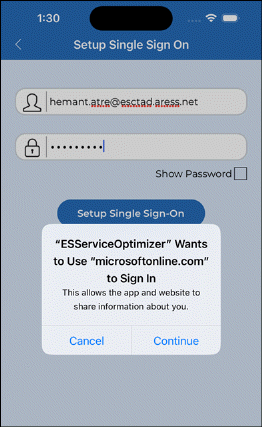
4. Open the Microsoft login window by clicking on 'Continue' and select your AD user.
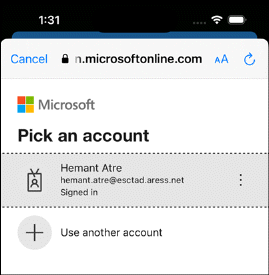
5. Enter your AD username and then click on the “sign on” button to retrieve the user's SSO settings.
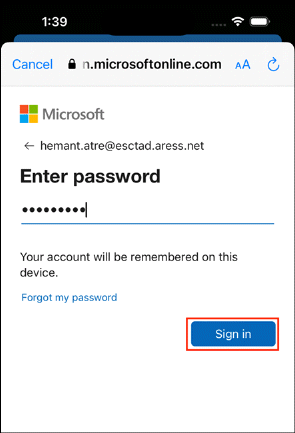
6. The user's SSO settings imported successfully and redirected to login page.
