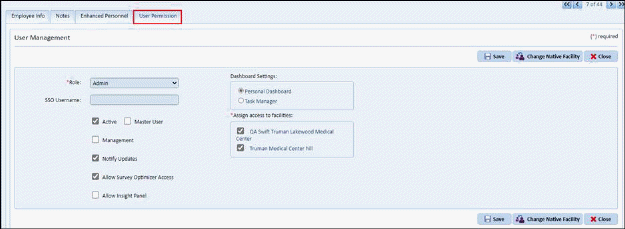
1. Add/Edit Employee -
- If SSO exclusive is enabled then, User Permission tab is shown in employee details page (Add/Edit Employee).
- Master user can add user details while creating a new employee or editing existing employee.
- The tab is only accessible for Master user and available when SSO Exclusive is enabled.
- User can edit additional setting from User module.
- When the new user is added from User Permission, the password set for the user is “F$_2024SsO!$La”.
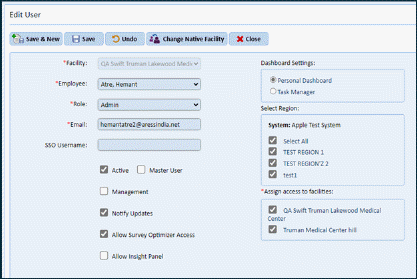
2. Add/Edit User -
- If SSO exclusive is enabled, then Password/ Change password/ Reset Password is not visible to the user.
- When the new user is added from Add/edit User and SSO Exclusive is enabled for the account, the password set for the user is “F$_2024SsO!$La”.
Survey Optimizer-
-
When user access Survey
Optimizer from valid SSO Exclusive IP range and SSO exclusive is enabled for the
account then, “Login with SSO” button along with app selection drop down is
shown to the user on Login page, refer below screenshot-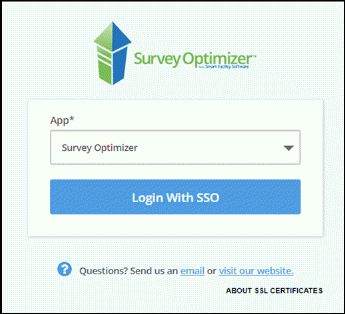
- After login, facility selection will be shown to user before entering into the application.
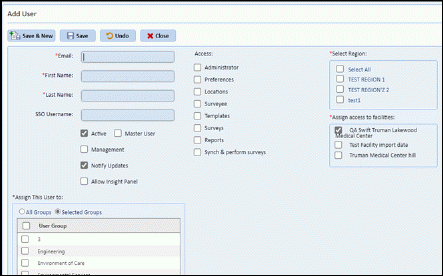
Add/Edit User -
- If SSO exclusive is enabled, then Password/ Retype password is not visible to the user.
-
When the new user is added
from Survey Optimizer and SSO Exclusive is enabled for the account, the password
set for the user is “F$_2024SsO!$La”.
iOS -
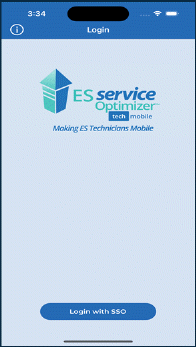
- When user access iOS app, an API is called to check the SSO Exclusive setting is enabled, and the network IP address is present for any account.
- If SSO exclusive is enabled and user network IP address is added for any account, then “Login with SSO” button is shown to the user.
-
When SSO Exclusive is
enabled and user logged in using valid IP range, then user does not need to
import user.
Refer below screenshot-