There will come a time when the staff member assigned to a daily assignment is no longer available. Performing wholesale changes in the Schedule/Template tab can be a little confusing the first time edits are required. This process should make it a little easier.
1. Un-schedule the replacement staff person from their other assignments first (if applicable).
2. Open the Daily Assignment where you would like them to be assigned.
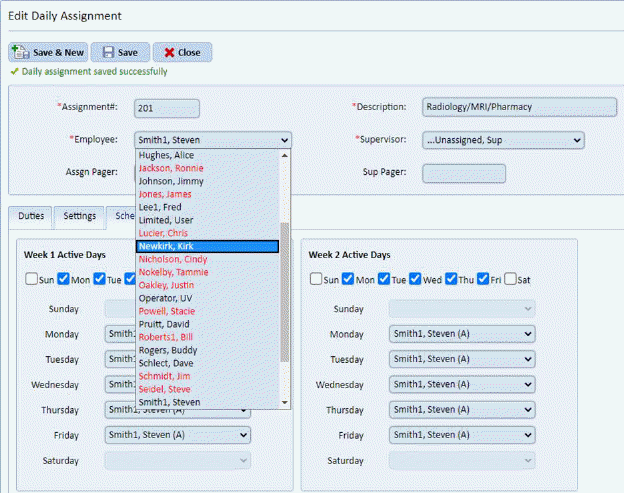
3. Change the Employee from the previous staff member to the employee you just unscheduled as shown below:
As you can see above Steven Smith is going to be replaced by Kirk Newkirk.
4. Once
selected please click the Save button . You will see the dialogue box
below:
. You will see the dialogue box
below:
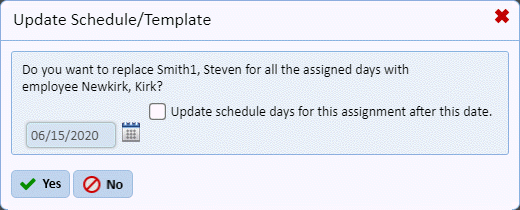
5. Answer the dialogue box.
NOTE: If you have been using the Personnel Module to schedule your staff and their Daily Assignments and you have a current schedule you will see this dialogue box:
Notice the checkbox that provides the option to update the Schedules as well as updating the template! It will automatically install the date you make this change and will update all the schedules after that date.
6. If you
agree, Check the box and click on the Yes button or click on the No button
 if you do not want to update the Template
and/or Schedules at this time.
if you do not want to update the Template
and/or Schedules at this time.