 to
open the Project Assignments module:
to
open the Project Assignments module:Below are the steps to update completed tasks:
1. Click
on Project Assignments button to
open the Project Assignments module:
2. Select the Scheduled option
 and mark the
tasks that are completed.
and mark the
tasks that are completed.
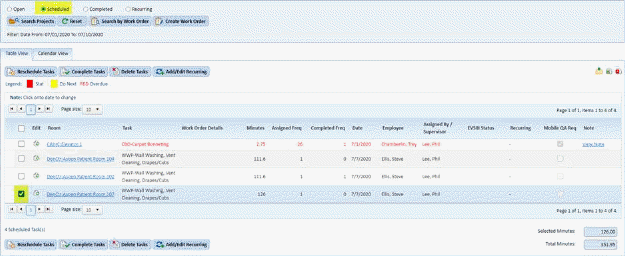
3. Click
on Complete Tasks button  to open
the figure below:
to open
the figure below:
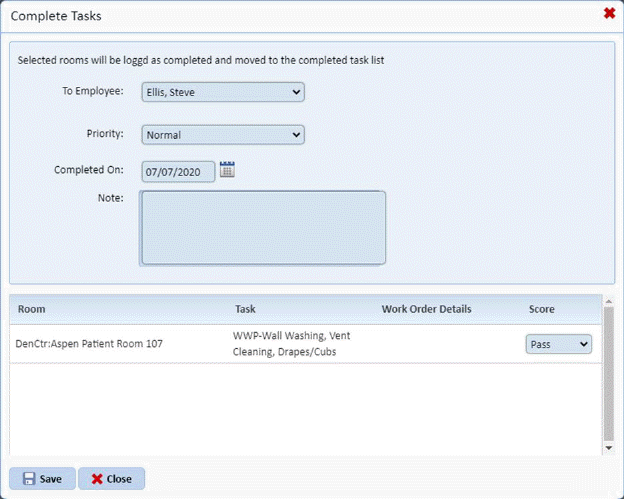
4. Select the employee who completed the tasks.
5. Select the Date for when the task(s) is completed.
6. Specify whether the task(s) passed or failed inspection.
7. If you
are satisfied with the changes then click on the Save button  and you will receive figure below:
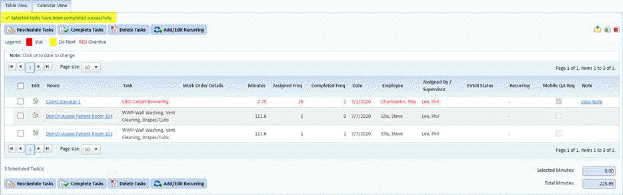
8.
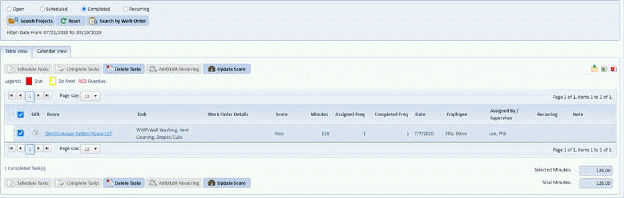
Completed tasks will appear under the Completed option  as shown below:
Note: You may use the “Open” projects button if you wish to skip the scheduling step and would like to move the project to Completed.