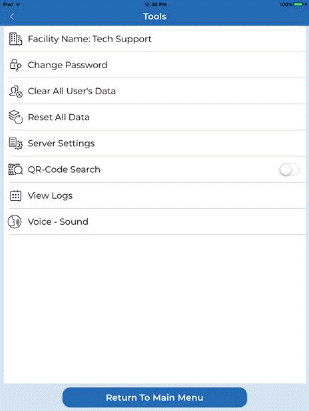
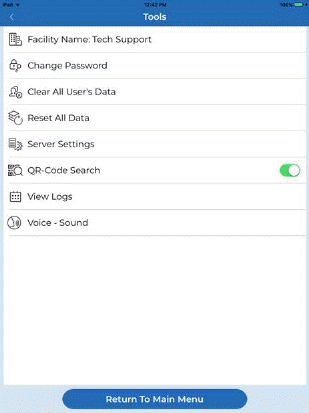
The Tools button opens the Tools Menu shown below:
Below are descriptions of each of the buttons:
Facility Code – This button allows the user (employee) to switch between facilities.
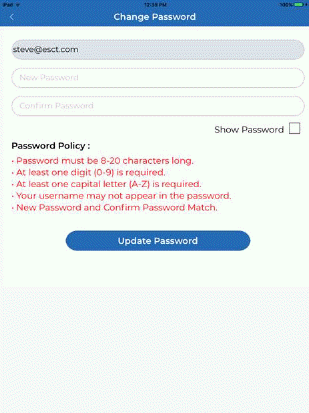
Change Password – This button allows the user (employee) to change passwords.
Clear All User’s Data – This button will prompt the user to clear any data associated with the current user. The dialogue you will receive is shown below:
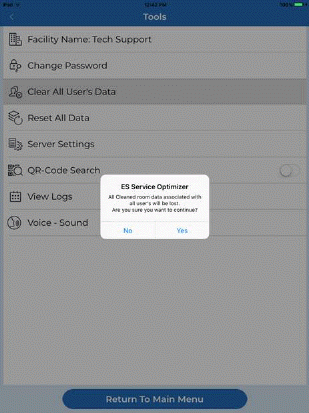
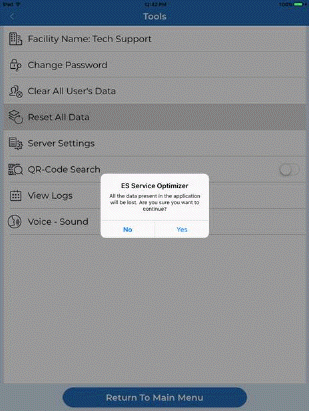
Reset All Data – This button works like the Clear All User’s Data button but all users are affected. All settings and data are reset to app defaults. The dialogue you will receive is shown below:
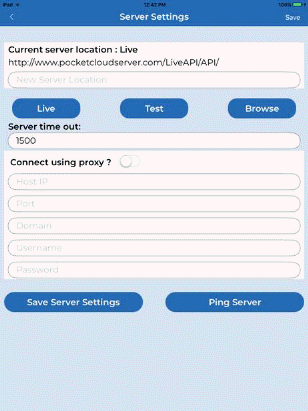
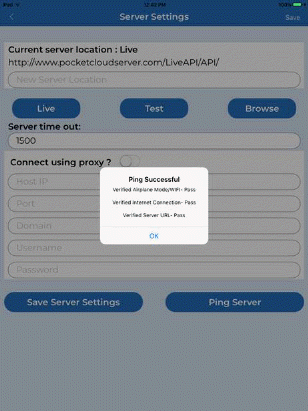
Server Settings – This button opens the Server Settings. Users can set internet access and server access if applicable. Ping Server is also available to check connectivity with the server over a network.
QR-Code Search – This is a switch that gives the user ability to use the camera function of their Apple Device to search for rooms using QR-Codes.
View Logs – Users can see sync processes and their status. Users can also send logs to Smart Facility Software tech support if they encounter issues.
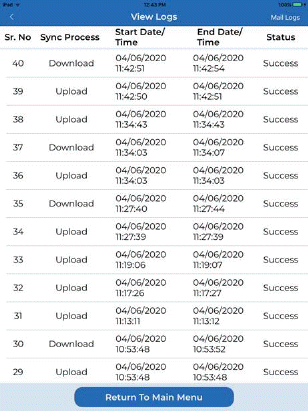
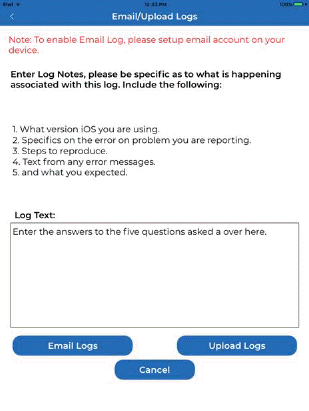
Note: You must have an email setup on the device in order to Email logs.
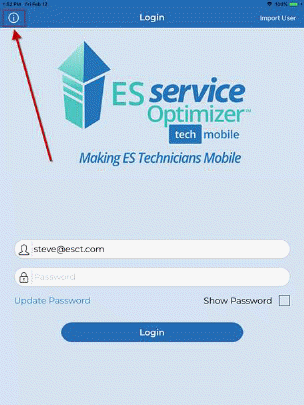
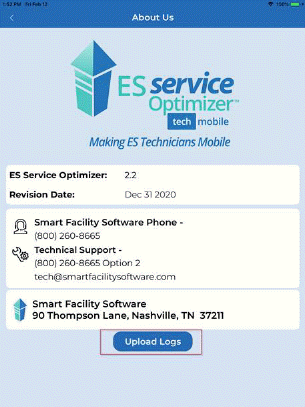
User may also upload logs from the info screen without logging into the application as shown below:
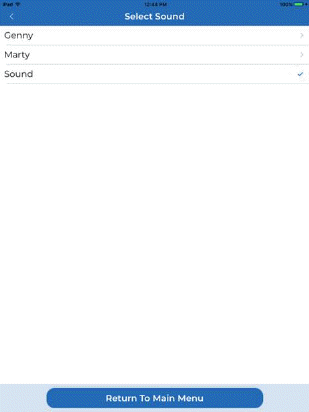
Voice – This allows the users to specify what voice/sound they’ll hear from the App when notifications/warnings are given.