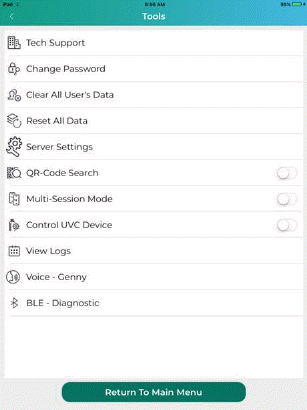
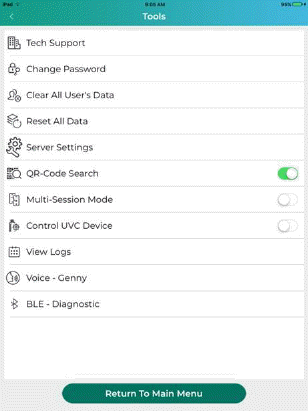
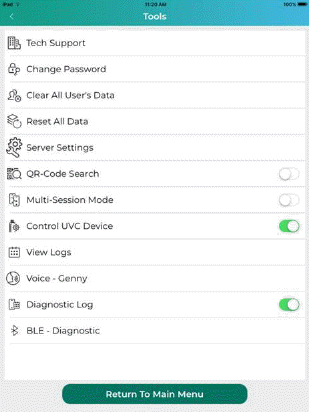
The “Tools” button opens the Tools Menu shown below:
Below are descriptions of each of the buttons:
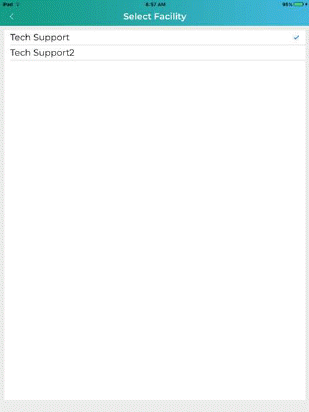
Facility Code – This button allows the user to switch between facilities, tap the facility name you wish to select as shown below:
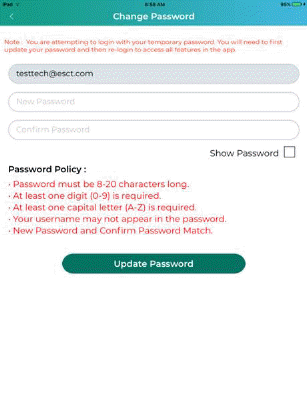
Change Password – This button allows the user to change passwords.
Clear All User’s Data – This button will prompt the user to clear any data associated with the current user.
Reset All Data – This button works like the Clear All User’s Data button, but all users are affected.
Server Settings – This button opens the Server Settings. Users can set internet access and server access if applicable.
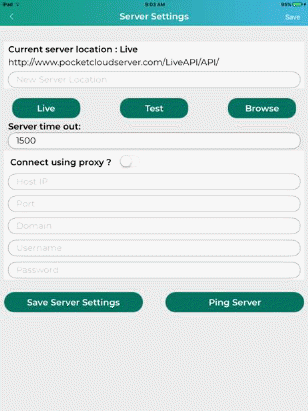
User may also “Ping Server” to check for server connectivity.
QR Code Search – This is a switch that gives the user ability to use the camera function of their Apple Device to search for rooms using QR Codes.
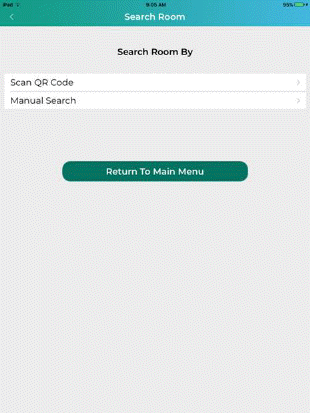
Multi-Session Mode – This is a switch that gives the user the ability to utilize 2 machines/devices instead of one. With this option, users can disinfect two rooms if they have more than one UVC machine available.
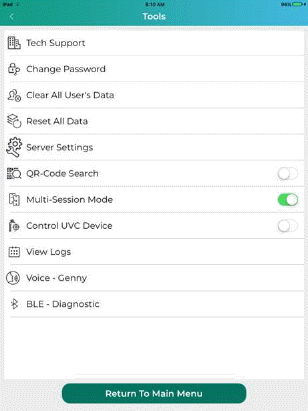
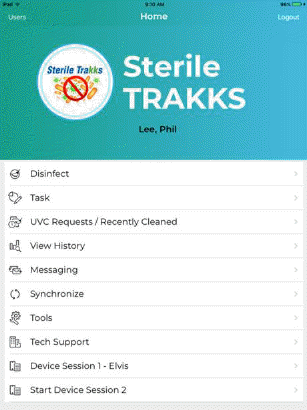
Just tap Start Device Session 2 to select a second UVC machine as shown below:
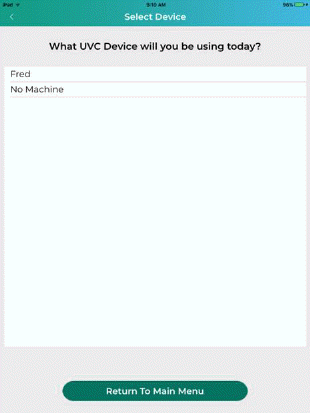
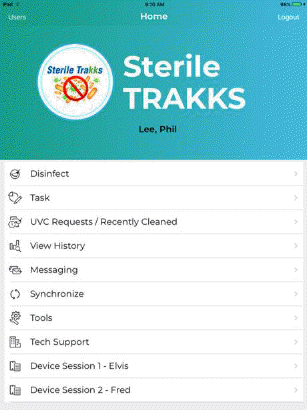
You are now ready to run two disinfect routines using two different UVC machines. Just tap the device session you wish to start and follow the disinfect room process.
Control UVC Device – Diagnostic Log - Users can control the UVC device when using the standard disinfection controls within the application. User may also enable the Diagnostic Log function which will track device control via a log which can be provided to tech support. See the “View Logs” section for more information.
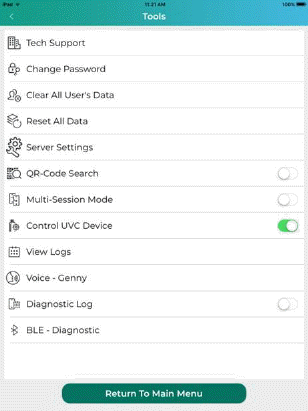
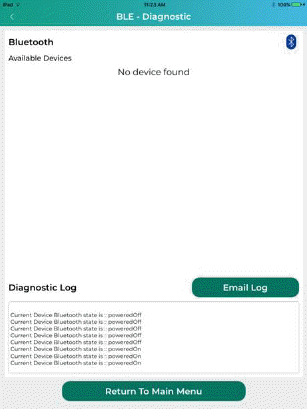
BLE Diagnostic – provides the option to email the Bluetooth diagnostic logs to any email address you enter as shown below:
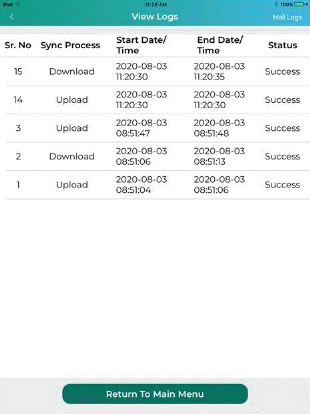
View Logs – Users can see sync processes and their status. Users can also send logs to tech support if they encounter issues with the application.
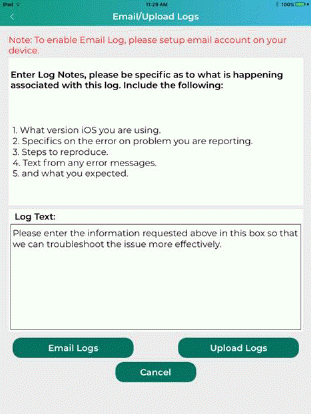
If Technical Support asks you to Upload\Email logs provide the information requested in the box shown and then tap the appropriate button.
Note: You must have email setup on your Apple device in order for Email Logs to function.
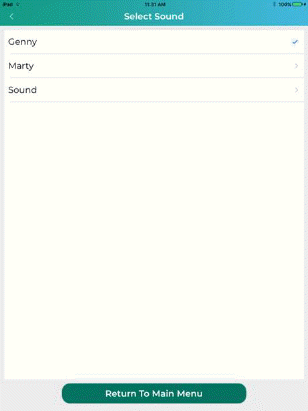
Voice – This allows the users to specify what voice/sound they’ll hear from the application.