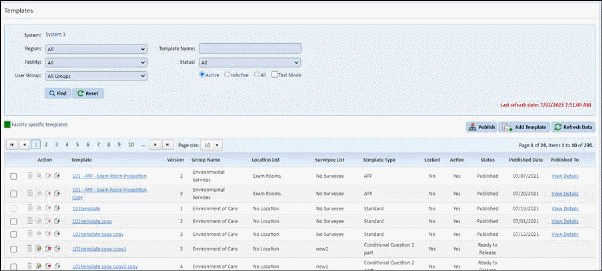
- Template list shows common(present in multiple facilities based on Template Name, Questions, Comments, Score Type, Location List and Surveyee List), newly added and facility specific templates.
- Common templates are the template having same Template Name, Questions, Comments, Score Type, Location List and Surveyee List in all facilities in the specific system.
-
- User can edit or delete newly added template or copied templates, but user cannot edit/delete the common and facility specific live templates. The live templates are in read only mode.
-
For common templates, only View  is enabled.
- For facility specific templates
o Facility specific templates are shown in green color.
o If template is present in
multiple accounts/facilities, following popup appeared on clicking of view icon
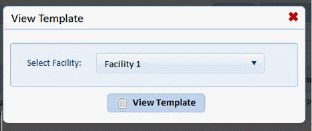
o User can view template details for specific facility by selecting facility from the popup and click on “View Template” button.
- User can add new template by clicking on “Add Template” button (refer Add Template)
-
User can copy the existing template by clicking on  icon (refer Copy Template)
- Template list shows following columns:
o Template Name
o Version
o Group Name
o Location List
o Surveyee List
o Template Type
o Locked (Test/Live)
o Active
o Status
o Published Date
o Published To – Clicking on “View Details” link, a popup shows the list of facilities where the template has been published. It also shows whether Locations and Surveyees are populated or not.
