
Below are the steps to modify existing tasks in Task Manager:
1. Open the Home page to view the Task Manager on left as shown below:
2. If
your task does not show you may Search for tasks by using the Find button which will display the task filter
as shown below:
which will display the task filter
as shown below:

3. Select
the appropriate criteria for the desired task and click the Find button  . You will see the screen
below:
. You will see the screen
below:
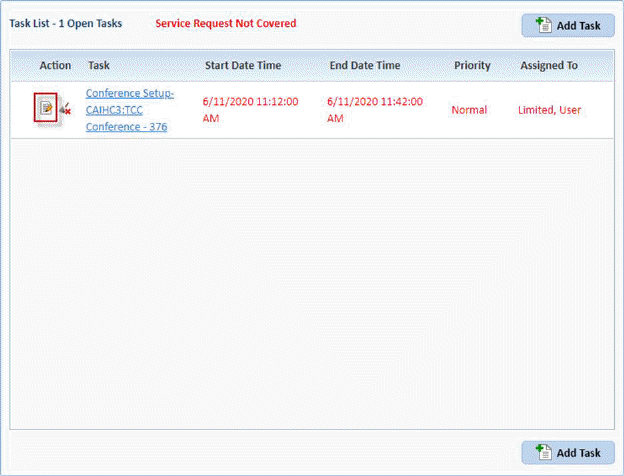
4. You
can then use the edit Icon  to the left of the task or click on the
task name itself to open the Task edit screen as shown below:
to the left of the task or click on the
task name itself to open the Task edit screen as shown below:
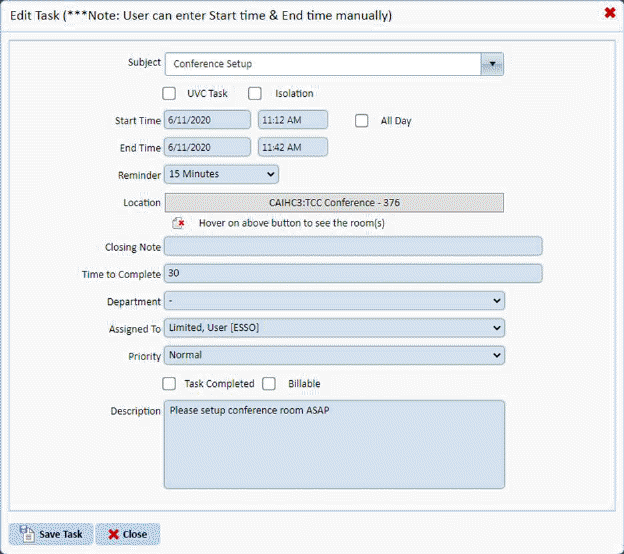
5. Make
changes as needed and click on Save Task  button, otherwise click Close
  button.
6. You
can also access tasks via the Task List button  to open the Task List
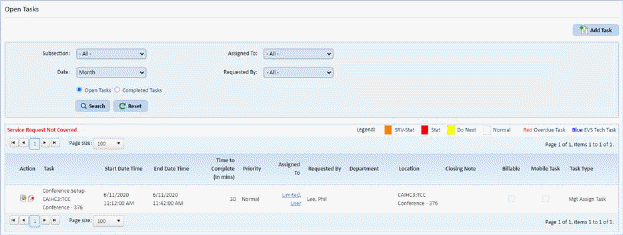
7. Select
the Task you want to modify/edit by clicking on the Edit button  before the task name. You will be
routed to the form shown below:
before the task name. You will be
routed to the form shown below:

8. You can modify the fields as necessary.
9.
If you are satisfied with your changes then click on Save button. Otherwise, click on Cancel button .
10. Repeat steps 2 through 4 for all other tasks you want to edit.