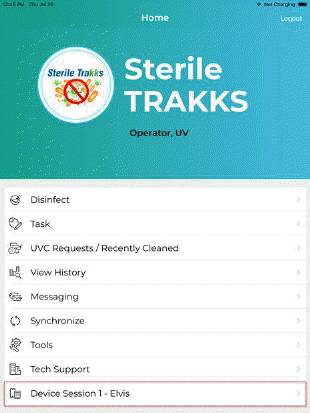
The Home Menu screen has several options. This section provides a brief definition of each option.
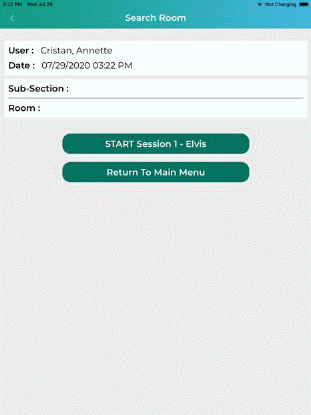
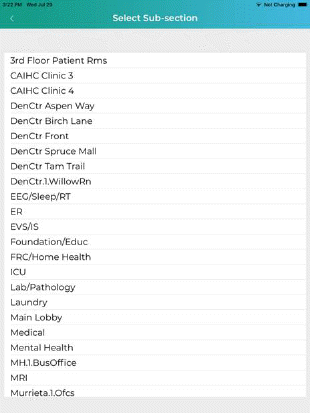
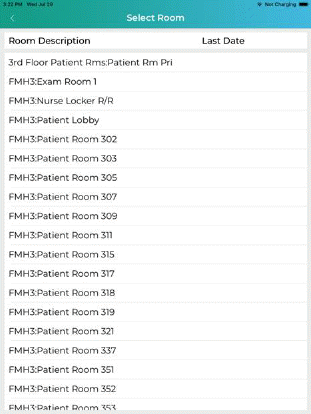
Disinfect – Click “Disinfect” to open the “Search Room” Screen to select the room you wish to disinfect:
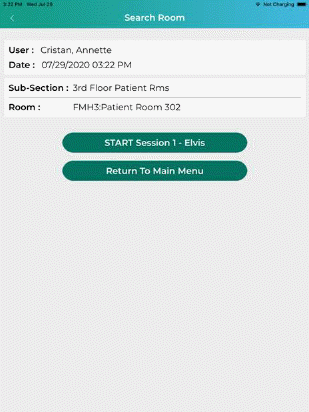
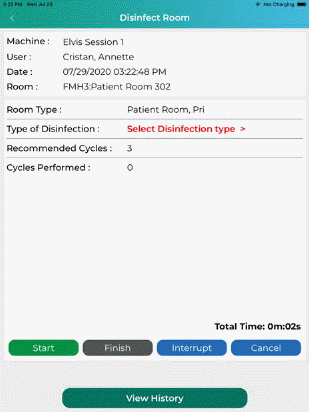
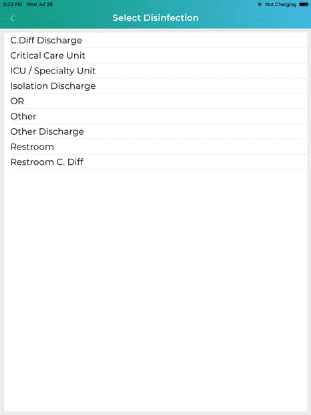
See Disinfecting Rooms section for more details about this function.
Tasks – This button allows the user to view their tasks. Users can also add tasks for themselves. If the user is a supervisor, the supervisor can also assign tasks to other users.

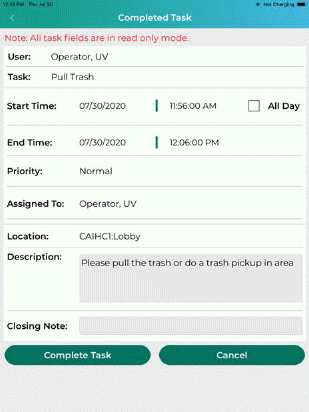
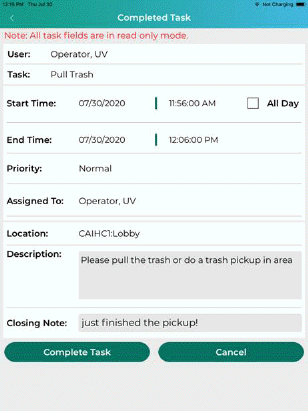
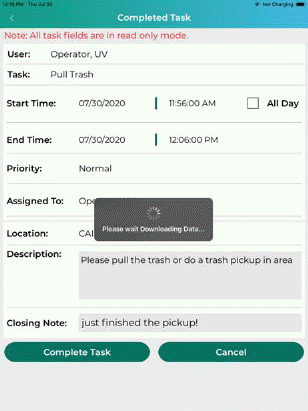
See Tasks section for more details about this function.
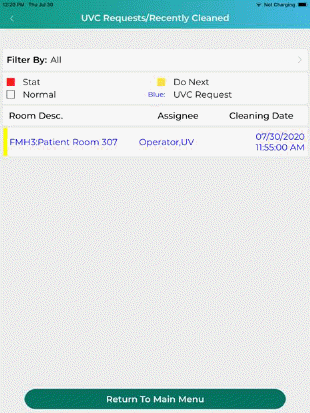
UVC Requests / Recently Cleaned Rooms – This button opens a list of rooms that require disinfection. From here users can select a room they want to disinfect with the machine they selected when the logged in. Tapping on one of the rooms (if there are any) will open the Disinfection screen.
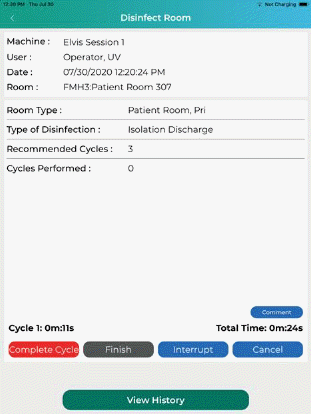
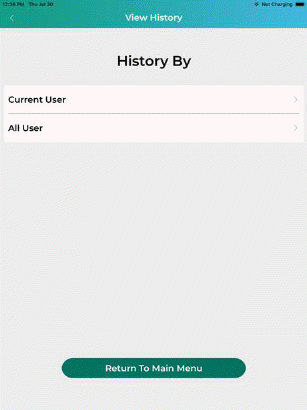
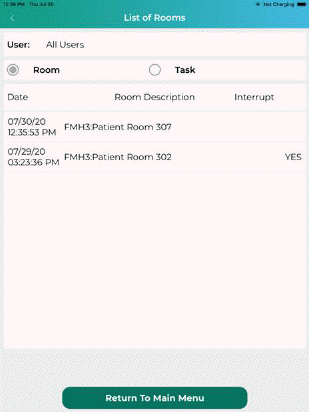
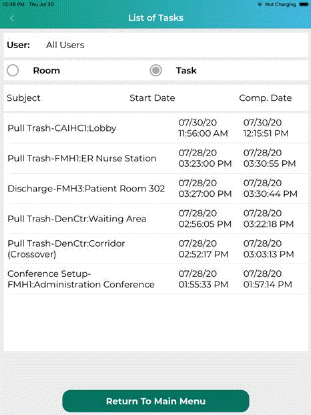
View History – This button opens a history of rooms that have been disinfected or tasks the user performed:
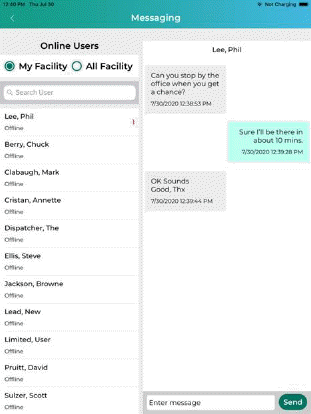
Messaging – This button opens the messaging screen. Users (employees) can send and receive text messages from other users (employees/supervisors). Users can track who sent the latest message and how many messages have been sent when users are “online.” User who sent the latest message will be shown at the top of the list of Online Users.

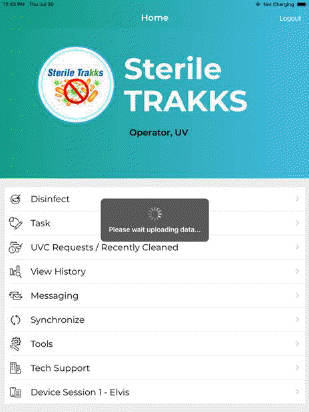
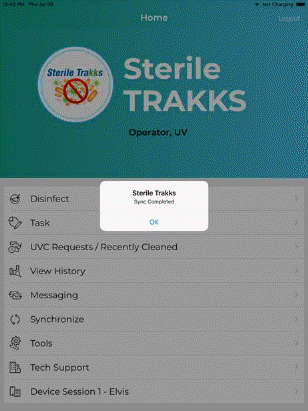
Synchronize – This button synchronizes data between ES Optimizer Web and the mobile app. It takes new data entered in to ES Optimizer Web (UVC Requests, recently cleaned rooms, tasks, etc.) and transfers them to the mobile app.
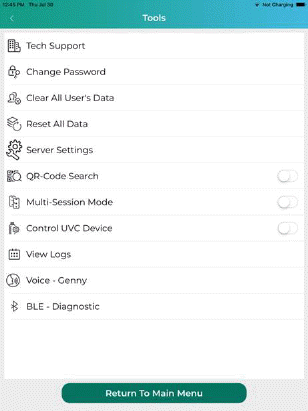
Tools – This button opens the Tools Menu. Users have access to additional functions here. See Tools Menu for more details.

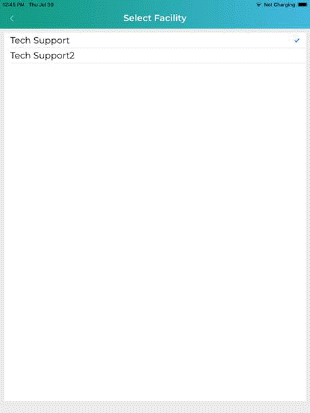
“Facility ID” – This button allows the user to switch between facilities if applicable. This is only possible if the user has access to multiple facilities for an account.
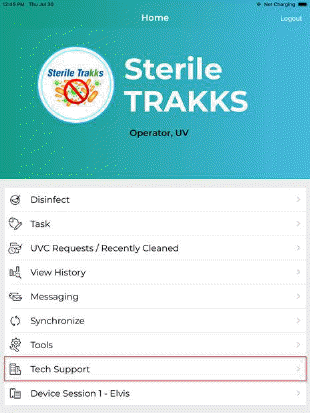
“Device Session ID” – This button allows the user to switch devices/machines from his original selection.