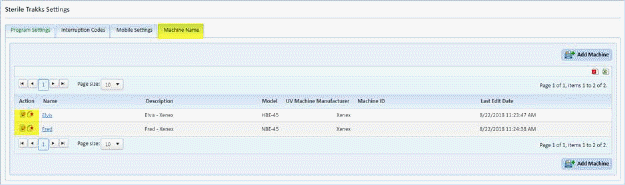
Before you can start using Sterile TRAKKS you will want to ensure the Sterile Trakks settings have been completed in ES Optimizer. It is very important the Machine Name/s is entered as that is what choices will be available within the Sterile TRAKKS app.
If you do not have access to ES Optimizer on the web please ask your ES Optimizer System Administrator if Sterile Trakks has been setup for use. If you do have access as an Admin to ES Optimizer, review the information below:
1. Login to ES Optimizer for the Web:
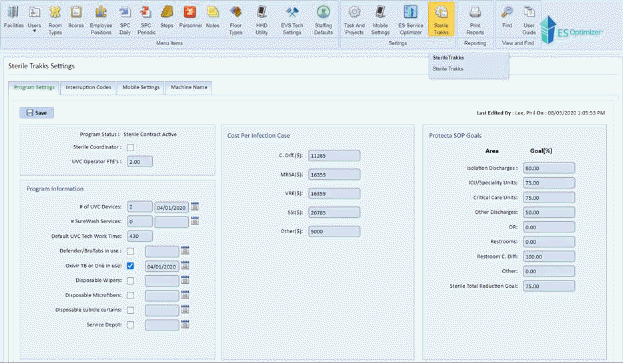
2. Navigate to Preferences> Sterile Trakks menu as shown below:
3. The
Program Settings is the first tab. Enter the information as needed and
click the save  button.
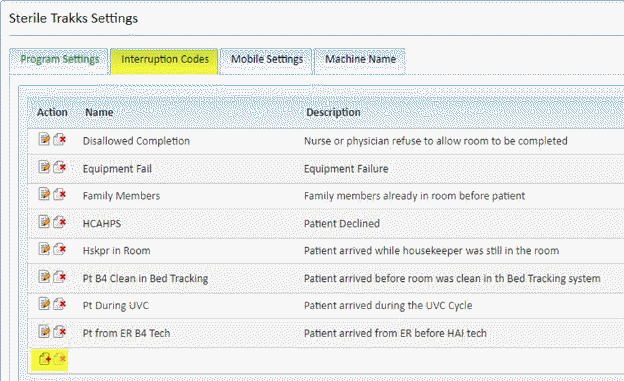
4. The next tab is the Interruption Codes tab. Most of the likely defaults will be entered here for you. If you wish to Edit, Add or Delete use the action buttons are available as usual.
5. The next tab is the Mobile Settings tab. This tab contains basic cycle information by device and a few app settings. Most of these would normally be preset for you, but you may make changes if needed and click the Save button as shown below:
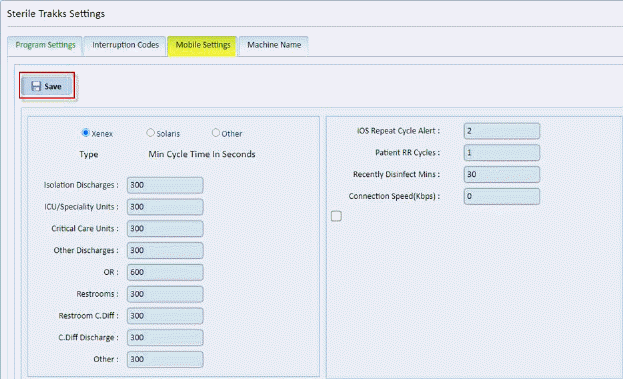
Note: you may enter different machine type cycle lengths by changing the machine Type (Xenex, Solaris, Other).
6. The
last tab is the Machine Name(s) tab. This should already be completed for
you in an existing facility. If you are in a new facility the machine
names should be added using the Add Machine  button. You will see the screen
shown below:
button. You will see the screen
shown below:
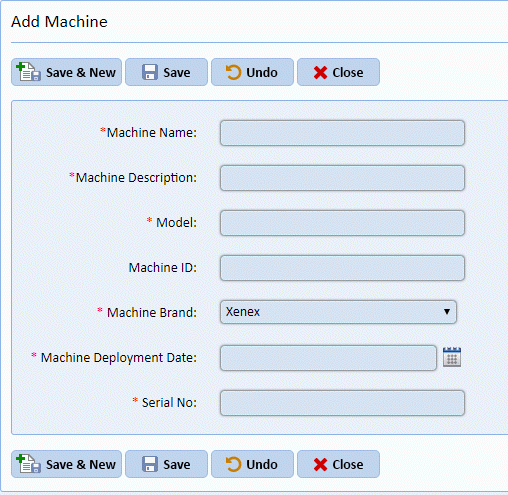
7. Enter
the information as needed and use the Save Button or the Save & New  Button if you wish to add more than one
machine to the list.
Button if you wish to add more than one
machine to the list.
Note: Items with a red asterisk are required.
8. If you
wish to edit or delete a machine use the action  buttons to the left of the machine you
wish to change.
buttons to the left of the machine you
wish to change.