When you are confident about the contents of what Training Class you will be conducting, you can schedule it.
Below is the procedure to schedule training classes:
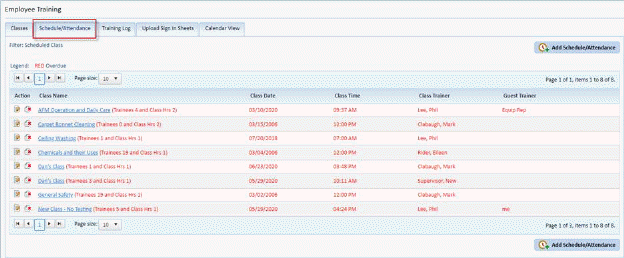
1. In the Employee Training Module, click on the Schedule/Attendance Tab. You will open the figure below:
2. Click
on the Add Schedule/Attendance button  to display the figure below:
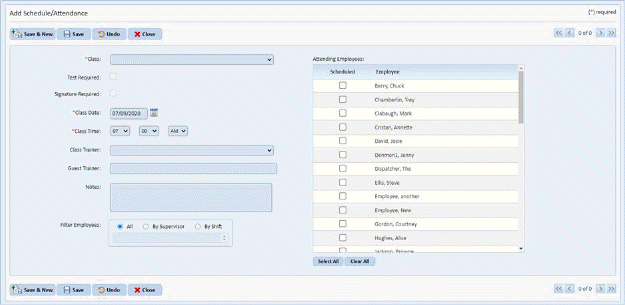
3. Select the class you want to schedule by clicking on the Class drop down field as shown in the figure below:
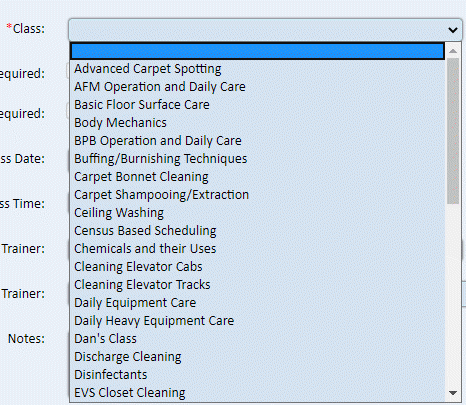
4. The “Test Required” and “Signature Required” checkboxes are chosen when the class was created and cannot be changed when scheduling. Both of these options are used in the ES Optimizer Mobile - Employee Training Module.
5. After selecting the class, click on the Class Date field to show the calendar below:
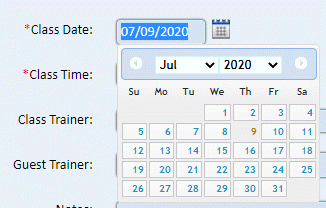
6. Select the date(s) you want the class scheduled.
7.
Specify the time for the class in the Class Time field .
.
8. Select
the Class Trainer from the Class Trainer field  who will teach the class.
Please note only supervisors are deemed as class trainers.
who will teach the class.
Please note only supervisors are deemed as class trainers.
9.
Specify the name of a Guest Trainer if applicable in the Guest Trainer field .
.
10. You can enter any notes regarding the scheduled class if you want.

11. You can filter the employee list with the Filter Employees field:

12. Select the employees you want to attend the class from the Attending Employees Table shown below:
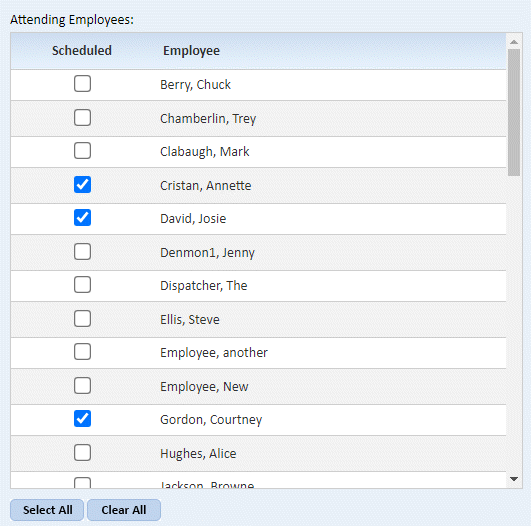
Click on the check box before the Employee Name to select the employee.
If you want all the employees to
attend the class, click on the Select All button  and all the employees will be marked for
attendance.
and all the employees will be marked for
attendance.
13. If you are
satisfied with the class you have scheduled, click on the Save button  in the form. To cancel, click on
the Cancel button
in the form. To cancel, click on
the Cancel button .
.
14. Repeat steps 2 through 12 for all other classes you wish to schedule.