 to
open the Project Assignments module.
to
open the Project Assignments module.After you have completed setting the periodic frequencies and have an idea what areas/subsections you want to assign from the previous sections, you will want to assign the periodic work to your project crew.
NOTE: The Project Assignments Module does not schedule the work automatically.
It is primarily an assessment and tracking tool, which tells you what has been done in each area and the last date it was performed. You can also assess how individual project workers are completing their tasks.
Below are the steps to schedule your periodic cleaning tasks:
1. Click
on Project Assignments button to
open the Project Assignments module.
2. Click
on the Open option . This ensures
that only rooms that are not scheduled for a project assignment are
filtered.
. This ensures
that only rooms that are not scheduled for a project assignment are
filtered.

3. You
can also search for projects by clicking on the Search Projects button  to open a figure similar to the one
below:
to open a figure similar to the one
below:
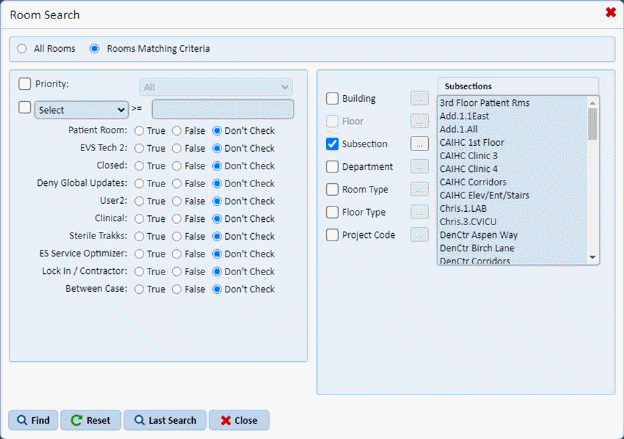
This helps isolate the rooms you want to include in your project work.
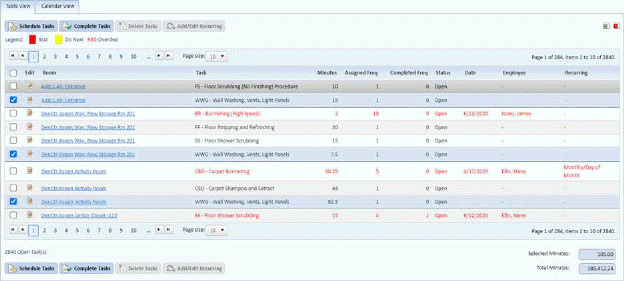
4. Mark the tasks you wish to schedule as shown below:
5. Click
on Schedule Task button  to display
the figure below:
to display
the figure below:
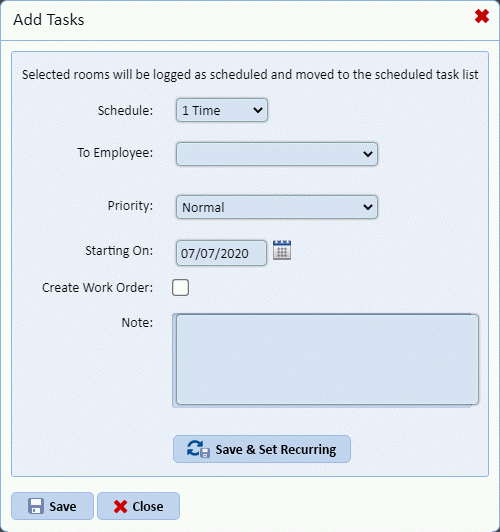
6. Specify how many times to schedule the tasks.
7. Select the Employee from the “To Employee” drop down field.
8. Select the Priority level
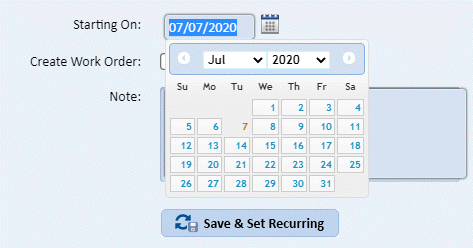
9. Click on Starting On combo box and select the Date from calendar:
10. Click on the Create Work Order check box if you want to create a Work Order for the task list and specify the Work Order Date.
11. Enter a Work Order Description to help describe and identify your work order.
12. Click on
the Save button  if you are content
with the criteria you specified. You can also click on the “Save & Set
Recurring” button
if you are content
with the criteria you specified. You can also click on the “Save & Set
Recurring” button . See section on
Re-Occurrence Distribution for more information about this feature.
. See section on
Re-Occurrence Distribution for more information about this feature.
13. Clicking on the Save button will take you back to the original “Open” list of tasks available to do.
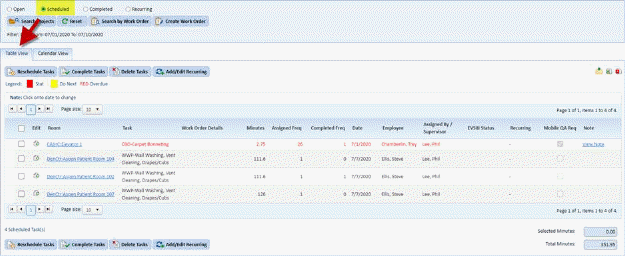
14. Click on
the Scheduled option  as shown in
the Tabs below and you can view your newly scheduled tasks.
as shown in
the Tabs below and you can view your newly scheduled tasks.
15. The Calendar View tab helps the user to view project assignments as scheduled throughout the month.
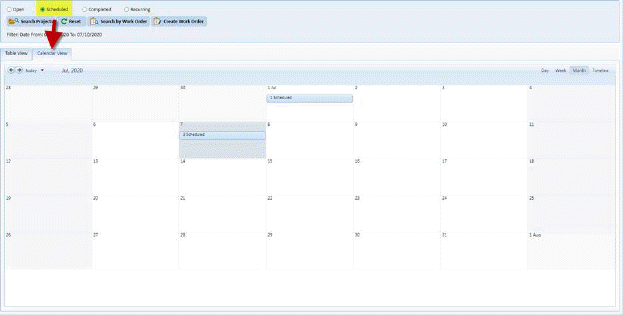
The Calendar View tab helps the user to view project assignments as scheduled throughout the Day, Week, Month or Timeline.