 to open the Census Based
Scheduling Module.
to open the Census Based
Scheduling Module.After you have entered all the Official Bed Numbers, selected a method for entering vacant beds, checked the percent back, and designated the Daily Assignment options, census can be run. Please note that the procedure below assumes that you have used a manual method to enter vacant beds. As such there will be an additional dialog box prompting you for vacant beds.
To run the daily census, do the following:
1. Click
on the Census Based Scheduling button to open the Census Based
Scheduling Module.
2. If the census has not been run in 24 hours, the system will prompt you that you need to run census for the day as shown in the prompt below:

3. After
answering the prompt above, click on the Run Daily Census button . You will receive the figure below,
prompting you for the date of the census:
. You will receive the figure below,
prompting you for the date of the census:
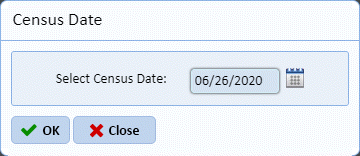
NOTE: The date is defaulted to the current day.
4. Enter the Date of the Census. The date must be listed in the following format: MM/DD/YYYY (06/26/2020 as an example).
5. After entering the date and clicking on the OK button, you receive the figure below.
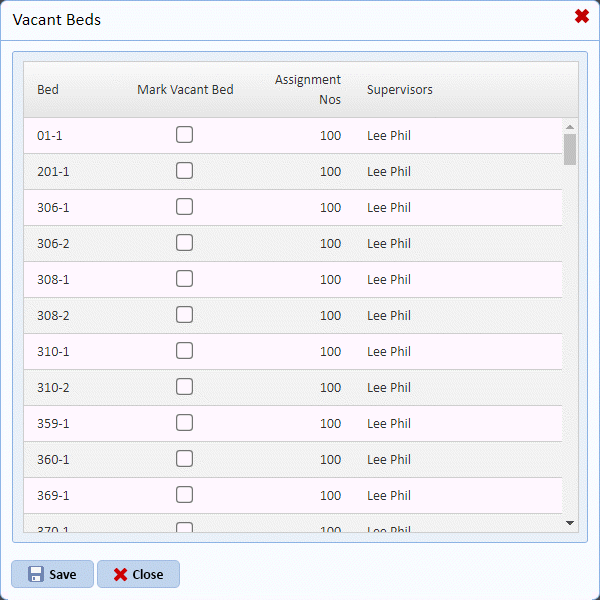
6. Check off the beds that are vacant. Click on the Save button when done.
7. After clicking on the Save button, you receive the confirmation prompt shown below:
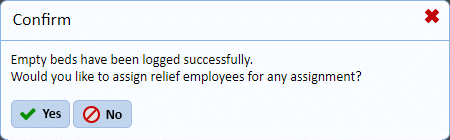
8. The prompt above asks you to assign relief employees for the day. By clicking yes, you open the figure below:
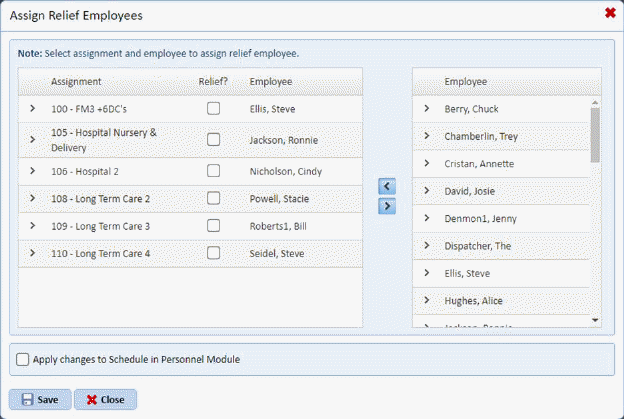
Otherwise, skip step 9 and go to step 10 below…
9. If you want to assign relief employees to assignments, do the following:
a. Select the assignment you want a relief person to work and highlight the assignment as shown below:
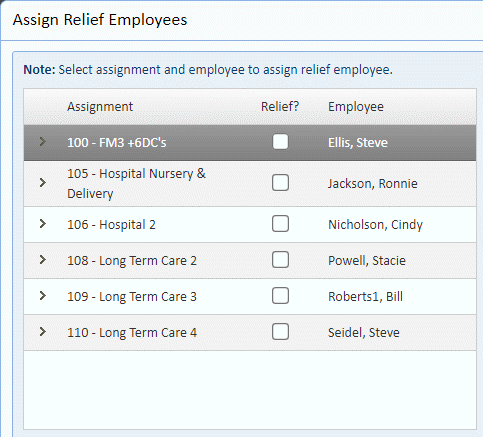
In this example, Assignment 100 is selected.
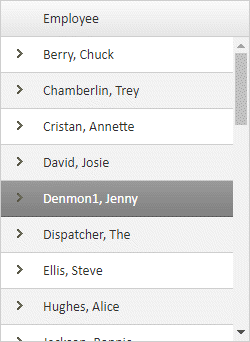
b. Select the relief employee you want to handle the assignment as shown below:
c.
Click on the < button  to execute
the change.
to execute
the change.
d. As shown below, the relief person selected will now handle the census assignment.
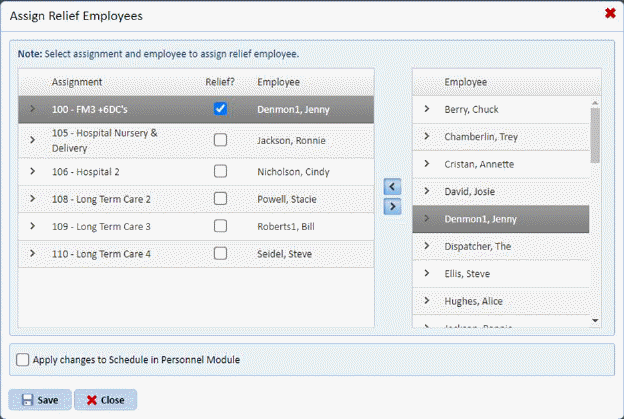
e. Repeat steps a through d for all other assignments you wish to change for the day.
f.
NOTE: The check box to adjust the schedule in the Personnel Module
 . If the box is checked,
the changes done at this point will also be done in the Schedule tab in the
Personnel Module (See Personnel Module Section for more details). We
recommend that you do to make sure that the relief person in question does not
have other duties to perform for the day.
. If the box is checked,
the changes done at this point will also be done in the Schedule tab in the
Personnel Module (See Personnel Module Section for more details). We
recommend that you do to make sure that the relief person in question does not
have other duties to perform for the day.
10. After clicking on the Save button on the Assign Relief Employees dialog box, you get the confirmation prompt below:
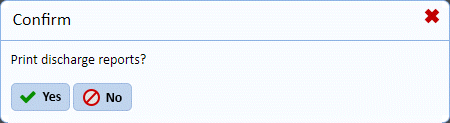
11. Answer the prompt above whether you want to print out the Discharge reports for the employees or not. The reports can be run at any time for any day via the Print Reports button. It is standard operating procedure to run these reports as early as possible in order to provide the employees their Discharge Assignment Worksheet.
Management uses the Discharge Times and Quotas report. The Discharge Times and Quotas Report is a daily summary report that lists the assignments, the employees working those assignments that day, the optimum time, the required time, the remaining time, and the number of discharges (quotas) that the employee should be able to handle that day and still finish the other work in the schedule.
The Discharge Assignment Worksheet Report needs to be handed to all employees before their first break in the morning. Employees will be informed of their empty beds for the day and (optionally) the number of discharges that are expected that day. Also, it contains a place for them to input the discharges they do that day. The employees should complete this and hand it back every day.
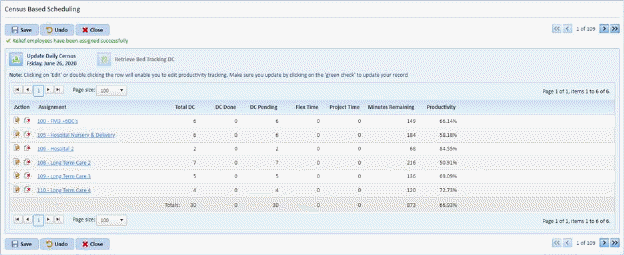
After the census is run for the day, you generate the figure below: