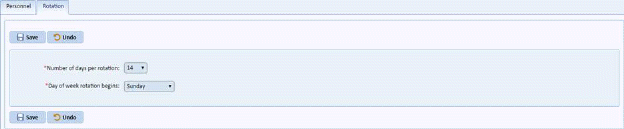
Click on the Rotation Tab to open the figure below:
Rotation allows you to set the number of days and start day in a schedule period. The minimum days in a rotation starts at 7 days (1 week) and goes to 70 days (10 weeks). The rotation set affects the Personnel Module with its template and schedule. (See Personnel Module for more details.)
You cannot create or delete any rotation settings. You can only update the fields that are provided.
NOTE: Making changes in the Rotation will affect the template and schedule you set in the Personnel Module.
Every department's Rotation starts on a particular
day. You need to enter the number of days that your rotation "turns over"
and starts again. You will want to make sure the day your department's
rotation starts is correctly identified. After making the necessary
settings click on the Save button .
To cancel, click on the Undo button
.
To cancel, click on the Undo button .
.
For example, if your calendar rolls over every week, you should enter seven for the number of days per rotation. In the figure above, the rotation is set to two weeks and starts on a Sunday.