
After entering all the Official Hospital Bed Numbers, you need to review the census settings in the Preferences Form. Below is the procedure for the task:
1. Go to Facilities and you will see the figure below:
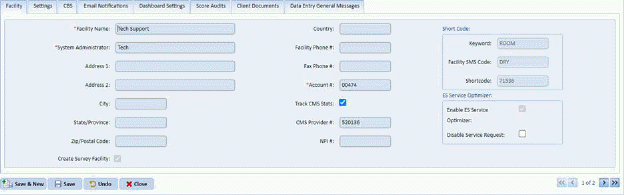
2. Select the Facility you want to review and edit that facility. You will open a figure like the one below:
3. Click on the CBS Tab to display the figure below:

4. Review the information for the following questions on the form shown above:
a. How do you wish to enter vacant bed information into the system – Manual, Manual by Assignment, Mainframe, or BedTracking?
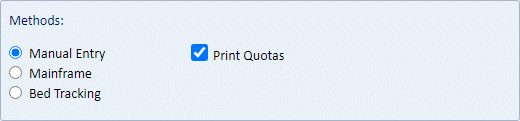
Manual – This means that the user will manually check all vacant beds in the system when Census Based Scheduling is run for the day. This is the default when you first start ES Optimizer with your own database.
Manual by Assignment – This allows the user to enter the vacant beds grouped by Daily Assignment.
Mainframe – This means that ES Optimizer will automatically get the list of vacant beds from a particular file the user specifies. When census is run for the day, the file you specify in the provided field will be read and any beds listed in the file will be marked vacant. Please contact ES Optimizer Tech Support to get the latest information on the Mainframe Specifications.
BedTracking – This method of performing census is the most accurate method. For more information on this, please contact ES Optimizer Tech Support at 800-260-8665, Option 2.
b. Do you
want quotas to be printed or not? – By clicking on the Print Quotas check box
 , you can specify whether the employee
will know how many discharges he or she will perform for the day. If
unchecked, you have to provide the necessary instruction to them.
, you can specify whether the employee
will know how many discharges he or she will perform for the day. If
unchecked, you have to provide the necessary instruction to them.
c. Specify the Percent Back for Private, Semi, Tri, and Ward Patient Rooms.

5. After reviewing the necessary information, save any changes made by clicking on the Save button.