This feature helps simplify the process of re-scheduling specified tasks on one screen.
Below is the process on using the Re-Occurrence Distribution system:
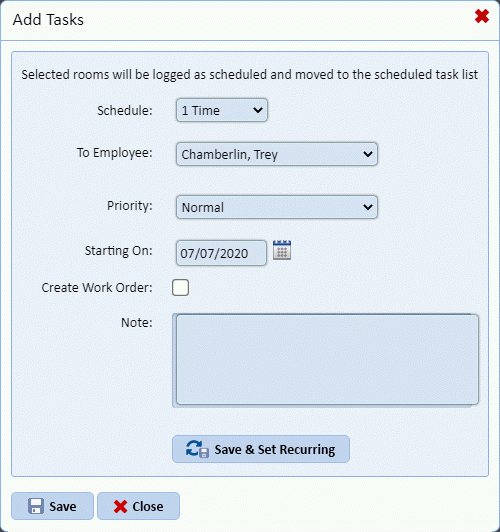
1. During the process of when the user adds a task in Project Assignments, the user is prompted with a figure like the one below:
2. Click
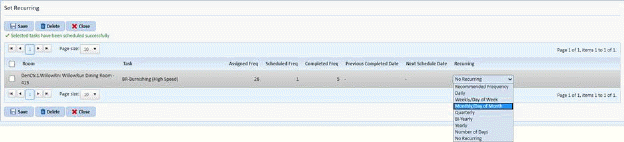
on the “Save & Set Recurring” button . You will open a figure like the one
below:
. You will open a figure like the one
below:
Note: You can also click on the Add/Edit
Recurring button  after selecting a
set of rooms/tasks in the Scheduled option of Project Assignments.
after selecting a
set of rooms/tasks in the Scheduled option of Project Assignments.
3. You can specify how often the specified tasks will be scheduled as shown in the figure below:
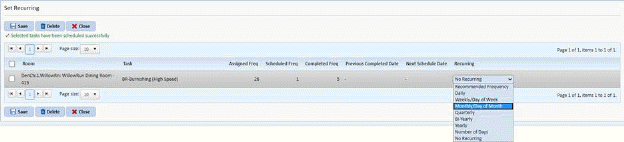
4. Now you can specify the re-occurrence for each task. The options available are:
Recommended Frequency – This allows the user to set the next occurrences of the schedule as per defined frequency for that particular task(s).
Daily – This allows the system to create a schedule automatically on the next day after completion of the existing schedule.
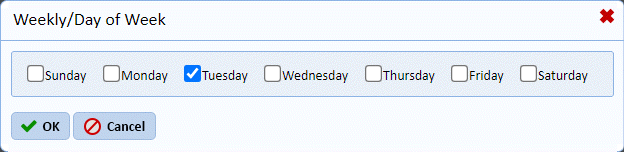
Weekly/Day of Week – This allows the user to set the occurrence of next schedule on the selected days from a week as shown in the figure below:
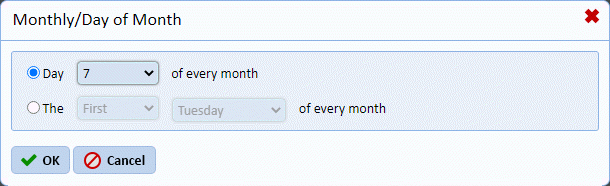
Monthly/Day of Month – This allows the user to set the occurrence of next schedule on the selected day of a month or specify the first Monday, Tuesday, etc. for that specified month. The schedule will be automatically created after completing the existing task(s).
Quarterly – This allows the user to set the occurrence of the next schedule on a quarterly basis, i.e., after every 3 months after completion of existing schedule.
Bi-Yearly – This allows the user to set the occurrence of the next schedule on a bi-yearly basis, i.e., after every 6 months after completion of existing schedule.
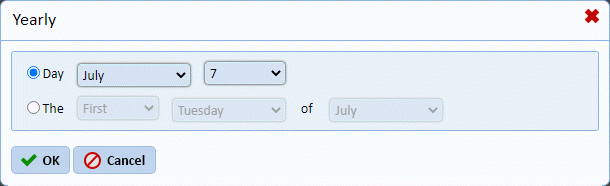
Yearly – This allows the user to set the occurrence on a selected day for a specified month or specify the first Monday, Tuesday, etc. of a particular month. The schedule will be created automatically after completing the existing schedule on the selected day each year.
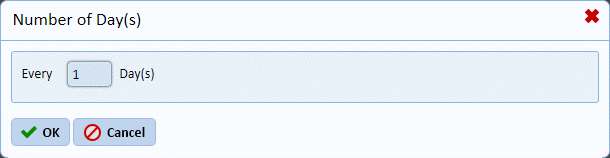
Number of Days – This allows the user to set the next occurrences of a schedule for a specific number of times in a year.
No Recurring – This does not set any re-occurrence for the specified room.
5. Click
on the Save button  after specifying
the re-occurrence for the specified task(s).
after specifying
the re-occurrence for the specified task(s).