Please refer below screenshot.

- Setting is added to add/edit SSO exclusive IP range, user can enter white-list IP range.
- Logged in IP should be in the given range.
- “SSO Exclusive” checkbox is added to enable SSO exclusive for the account.
- The setting is added for account
specific and user cannot enter duplicate IP range.
Please refer below
screenshot.
- To enable SSO Exclusive for the account, SSO should be enabled for at least one facility in the account.
- If SSO is not enabled for any of the
facility and user try to enable SSO Exclusive setting, below pop up is
shown.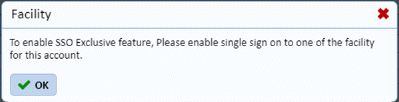
ES Optimizer -
- When user access ES Optimizer from valid
SSO Exclusive IP range and SSO exclusive is enabled for the account then, “Login
with SSO” button along with app selection drop down is shown to the user on
Login page, refer below screenshot-
- After login,
1. If user having multi facility access, then facility selection drop down is shown to user before entering into the application.
2. If user having single facility access, user can enter into the application.