in the Apple
Device touchscreen. The first time you run Sterile TRAKKS, you will
receive figures like the ones below:
in the Apple
Device touchscreen. The first time you run Sterile TRAKKS, you will
receive figures like the ones below:If you possess multiple hand held devices and you want to use all of them with Sterile TRAKKS, all devices will need to be configured to work with the database used in ES Optimizer.
NOTE: You should have the ability to use Sterile TRAKKS to work with the App. If you do not have access to use the App, please consult with your ES Optimizer System administrator or contact Technical Support for further details.
Below are the steps to register users in Sterile TRAKKS for your Apple Device:
1. Tap
the Sterile TRAKKS icon in the Apple
Device touchscreen. The first time you run Sterile TRAKKS, you will
receive figures like the ones below:

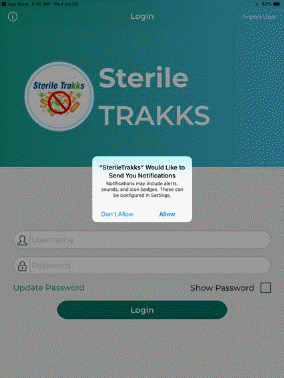
2. You will receive the prompt to allow notifications, answer the prompt (above right).
3. Tap on the Import User button in the top right corner of the app. This opens the screen below left. If you are an Administrative User you may choose Import All Valid Users in which case you will see the screen below right.
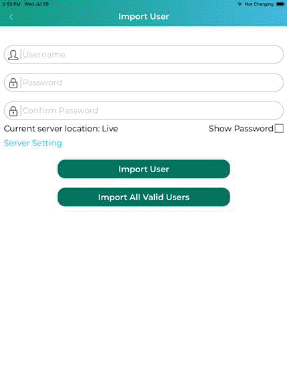

4. Enter your email address in the username field and your password in the password box and the Confirm password box. (Administrative Users only require the password be entered once, and you may tap on Facility Name to select facility.)
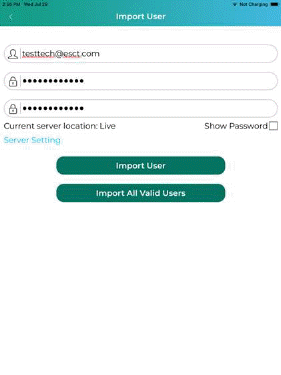
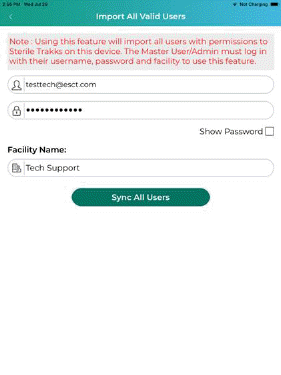
5. The final step is to tap “Import user” if you are importing just yourself, or in the case of an Administrative user you may click “Sync All Users.” When properly entered, you will receive the figure below:
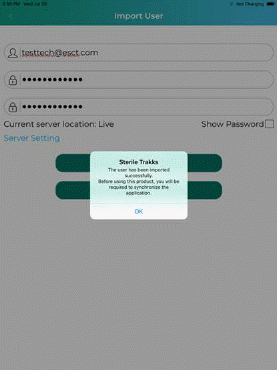
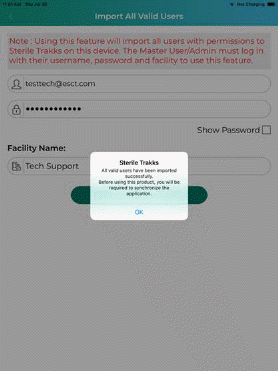
6. Tap on the OK button.
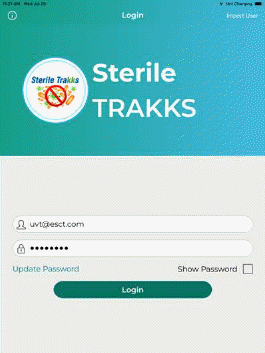
7. After registered, you will be routed back to the log in screen for Sterile Trakks as shown in the figure below. Ensure your email is selected in the Username box and enter your password in the password box and tap on the Login button.
8. If you have access to multiple facilities, you will be prompted with a figure like the one below:
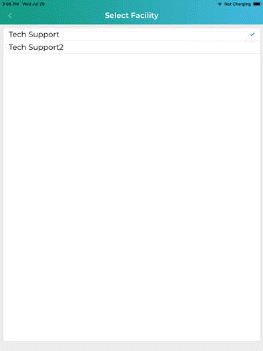
9. Tap on the facility you wish to work in.
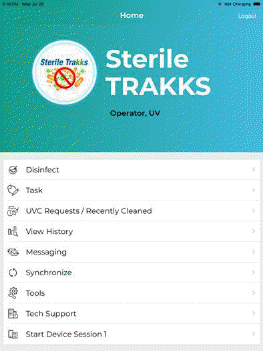
10. You will see the Home screen as shown below: