 . You will get the
figure below:
. You will get the
figure below:This section deals with a function only a “Master User” or “Admin: level user of ES Optimizer can utilize. This function speeds up the process of registering all users (employees) to work with ES Service Optimizer. Below is the process to register all users in ES Service Optimizer:
1. Open
ES Service Optimizer Tech Mobile App by clicking on the ES Service Optimizer
Tech button . You will get the
figure below:
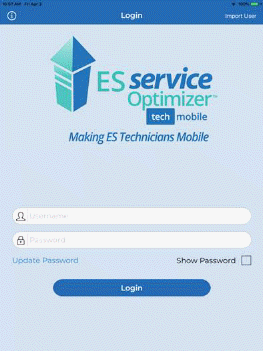
NOTE: The Update Password link allows the user to obtain the actual password from the ES Optimizer Web account. This is especially useful following password changes. This ensures that the user is an actual user of ES Service Optimizer Tech.
2. Tap on
the Import User button  and you will
get the figure below:
and you will
get the figure below:
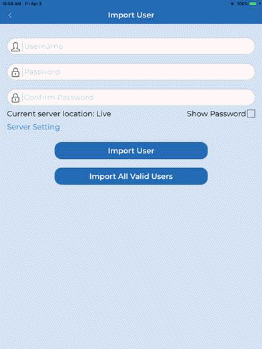
3. In the Import User screen, Tap on the Import All Valid Users button. You’ll get the figure below:
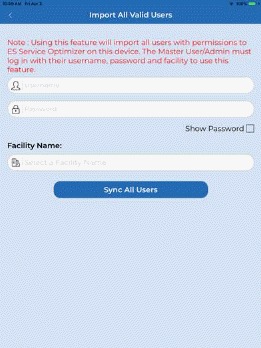
4. Enter the necessary login information for the Master User or Admin User.
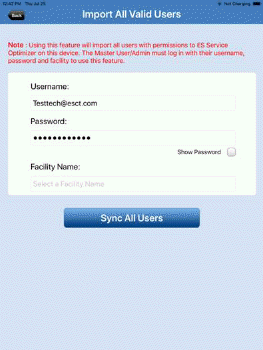
5. Tap on the Facility Code field. This confirms if the Master User has the proper credentials.
6. Select the Facility Code.
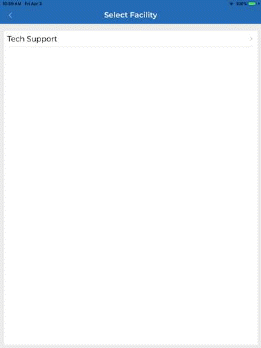
7. Tap on the Sync All Users button. When successful, you’ll be prompted with the figure below:
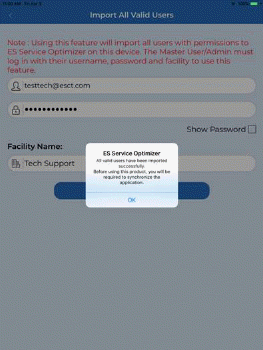
NOTE: Performing the process specified will also allow the Master User to “refresh” or update the list of users for ES Service Optimizer.