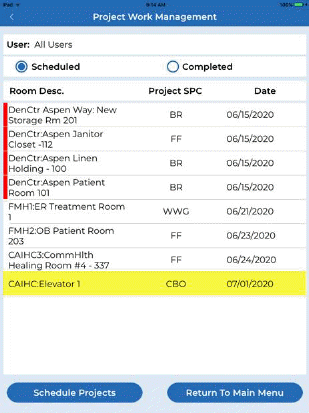
The Project Work Management function is under the Tasks and Projects button. Users (supervisors) can use this to schedule and track projects and specify priority for such projects. Supervisors can also inspect completed projects and label as Pass or Fail.
Below are the steps to schedule projects in the ES Optimizer Mobile App:
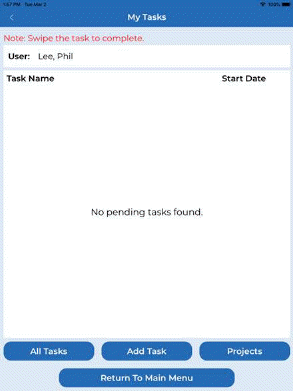
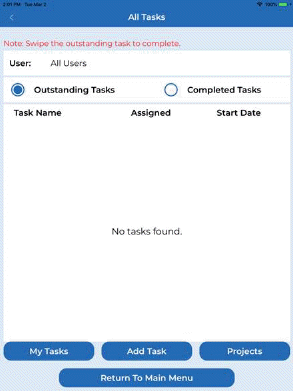
My Tasks view shown above All Tasks view shown above
1. While in Tasks and Projects screen as shown above, tap on the Projects button to see the screen below:
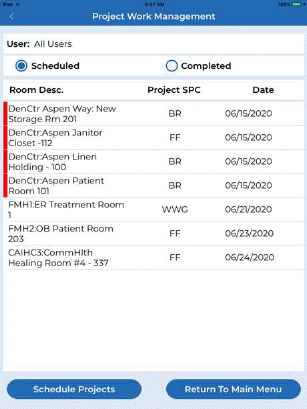
2. Tap Schedule Projects which will open a screen similar to the one below:
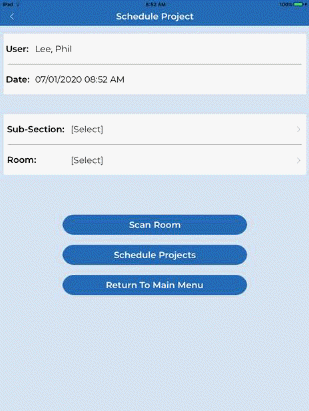
3. Users now have the option of either selecting the room by filtering it using the Subsection button or the Scan Room button. The Subsection button opens a list of subsections for the user to select:
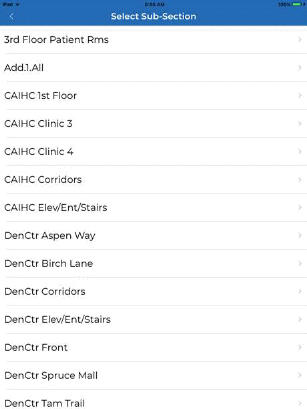
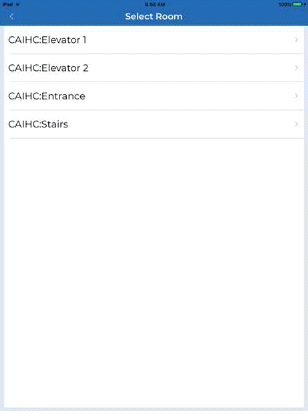
4. After selecting the subsection, a list of rooms in that subsection will be shown. Select the Room for the project and the screen below will be shown.
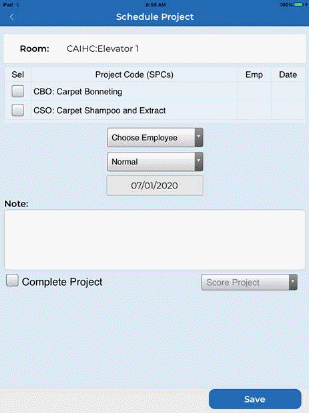
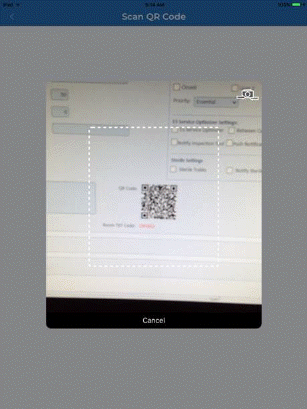
Option: The Scan Room button opens the Scan QR Code screen which allows the user to use the Apple Device camera to scan for QR Codes.
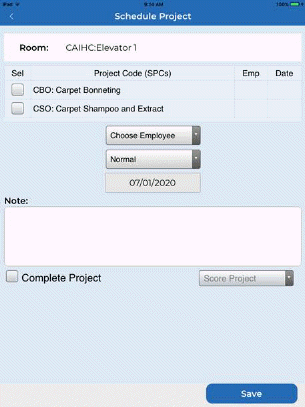
5. After selecting the room, the user is given a checklist of projects to select as shown below:
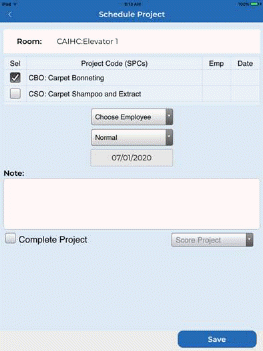
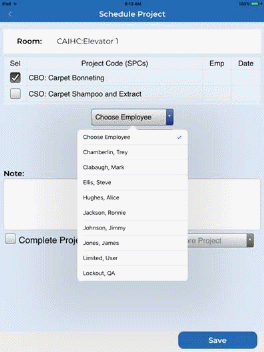
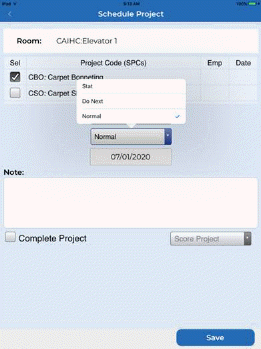
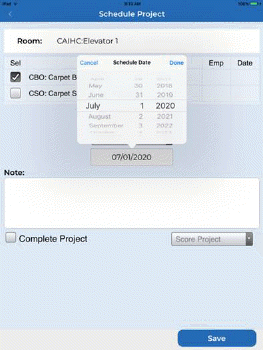
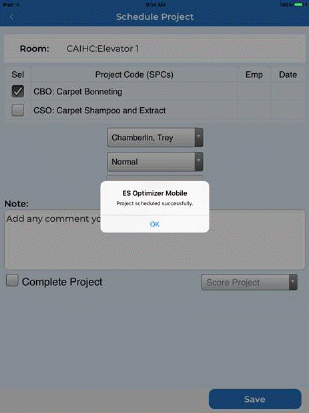
6. Select the project to be assigned and specify the employee, priority, and date for the project. Enter any notes involving the project.
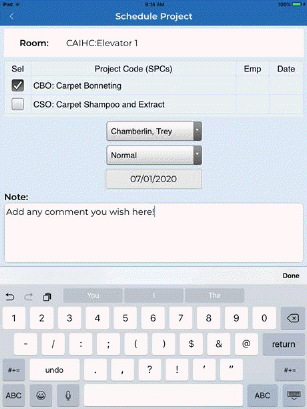
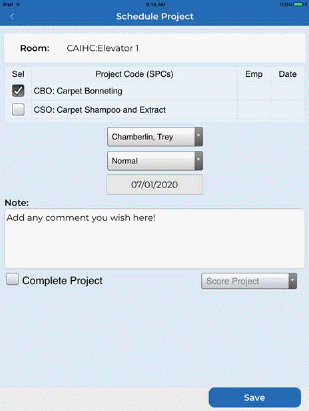
7. Tap on the Save button if you want to schedule the Project.