 to open the
Buildings List.
to open the
Buildings List.The only pieces of information that can be changed about the Building are its name and associated note. However, the Floors and Subsections in the Building have their own modification procedure that will be shown in succeeding chapters.
The important issue to note here is that one field affects the other. For instance, modifying information in the Subsection table will affect the Floors and modifying the Floors table will affect the Buildings. See Floors and Subsections for more details.
Below are the steps to modify information in a Building record:
1. Click
on the Buildings button to open the
Buildings List.
2. Select the building record you want to modify.
3. Click
on the Edit button  or on the
building name for the selected record. You will be routed to the figure
similar to the one below:
or on the
building name for the selected record. You will be routed to the figure
similar to the one below:
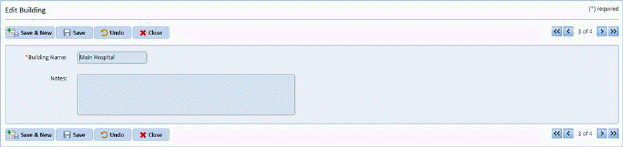
4. After selecting the building record you want to modify, the following information can be edited:
a. Building (Name) Field – Enter the desired change to the building name.
b. Notes Field – To modify the building notes, place the cursor inside the notes field and edit the text.
5. If you
are satisfied with the changes in your building record, click on the Save button
 . To cancel, click on the Undo button
 .
.
6. Click
on the Close button  to return to the
Buildings List.
to return to the
Buildings List.
7. Repeat steps 2 through 6 for all other buildings you want to modify in your database.
NOTE: If you plan to update the floors and subsections in the floors, please see Floors and Subsections chapters in this guide.