 to open the Quality Management Supervisor
List:
to open the Quality Management Supervisor
List:After an inspection is completed, the data in the Quality Management Tab needs to be updated to maintain data accuracy. This section explains how to update an inspection. This section can also be considered as a way to modify the records in your inspection.
Below are the steps to log in the scores for an inspection:
1.
Click on the Quality Management button to open the Quality Management Supervisor
List:
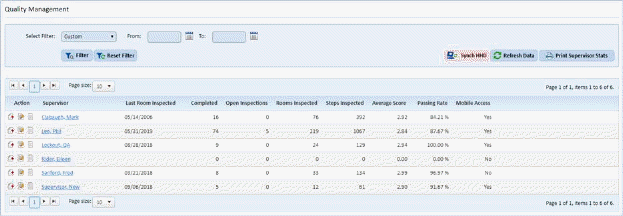
2. Select the supervisor with the inspection(s) you want to update. Click on his/her name and you will see the figure below:
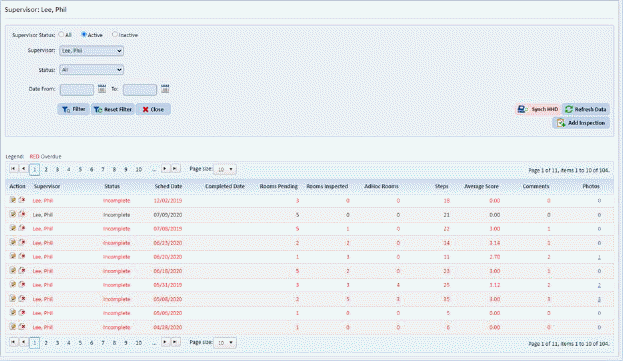
3. Select the inspection date which you want to update.
4.
After selecting the date, click on the Edit Inspection  button you will see a figure similar to
the one below:
button you will see a figure similar to
the one below:
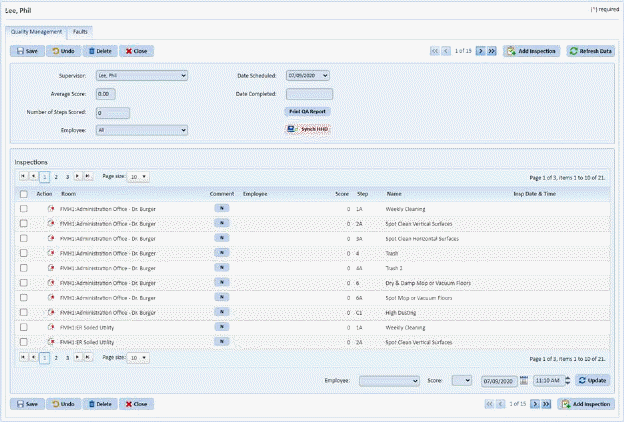
Notice that the values in the Average Score field, Number of Steps Scored field, Date Completed Field, and Inspection Steps Table are either empty or 0.
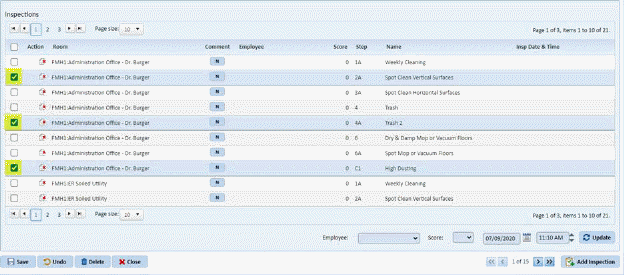
5. At this point, you can update the fields in the Inspections table. You can do this by selecting the line(s)/step(s) you want to score. Click on the checkbox before the Action Column next to the Room (Name/Description) See figure below:
 .
.
Notice that three of four steps shown steps in the Inspections table are selected.
6. In
the Employee drop down field  , select the
employee who performed the step(s).
, select the
employee who performed the step(s).
7. In
the Score drop down field  , select the
score for selected line(s)/step(s).
, select the
score for selected line(s)/step(s).
8. In
the Date/Time field  , specify when the
step(s) was/were completed.
, specify when the
step(s) was/were completed.
9.
Click on the Update button  to
update the selected line(s)/step(s) with the information from the 3 previous
fields. See figure below for the result:
to
update the selected line(s)/step(s) with the information from the 3 previous
fields. See figure below for the result:
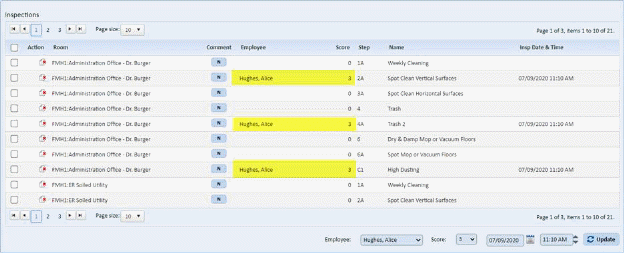
Notice how the scores have changed from 0 to 3 and the employee column has an employee’s name.
10. To enter comments, see Working with Comments section for more details on adding, deleting, and editing comments while in the Quality Management tab.
11. Repeat steps 5 through 9 for all other line(s)/step(s) in the inspection.
12. If you
are satisfied with the changes in the inspection, click on the Save button . To cancel, click on the Undo
button
. To cancel, click on the Undo
button .
.