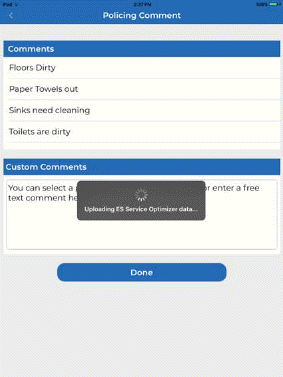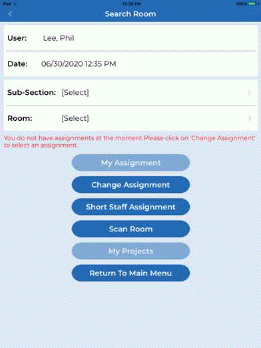
Log Clean/Policing is a function in ES Service Optimizer Mobile that allows the user/supervisor to specify rooms that are cleaned and/or policed.
Below are the steps to log room tasks:
1. Tap on the Log Clean/Policing button.
2. Users have several options of searching for rooms they clean/police.
Below are the methods by which rooms can be found:
Subsection – Facilities in ES Optimizer are divided into buildings. Buildings are divided into floors. Floors are divided into subsections. Rooms are located inside subsections. Below is a sample figure:
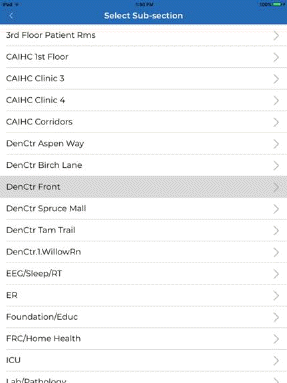
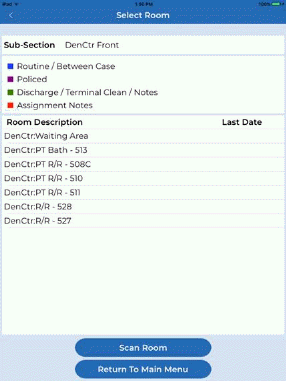
My Assignment – This button gives the user a list of rooms that are part of his/her employee work assignment. This is only applicable if the user has an assignment, below is a sample figure:
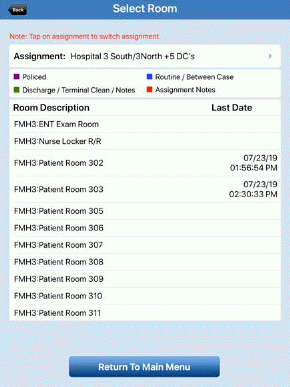
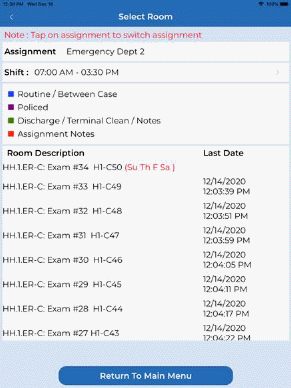
Note: Above right is the update to include the shift and the days per week (In Red) if less than the daily assignment frequency. Tapping the shift bar yields more information as shown below:

Change Assignment – This button allows the user to change to other assignments.
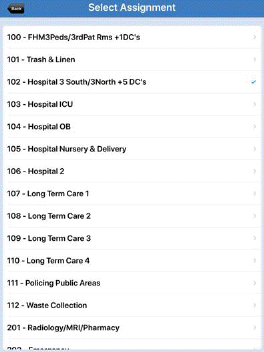
Short Staff Assignment – This allows the user to select a Short Staff Assignment as shown below.

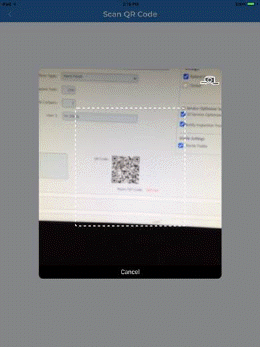
Scan Room – This allows the user to use the camera function of the Apple Device to scan the QR code of a room to find it in the database.
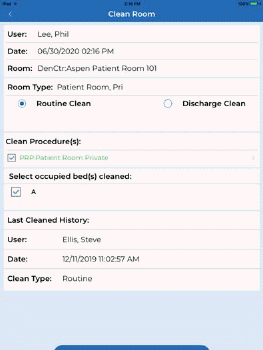
My Projects – This allows the user to see a list of rooms that require project cleaning. This is only applicable if the user is a project worker and has projects assigned to them.
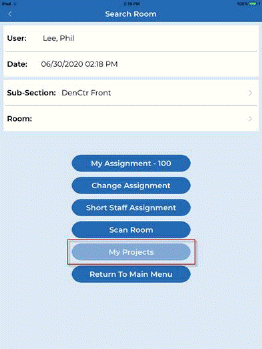
3. As you can see above the “My Projects” button is greyed indicating this user does not have any projects assigned to them.
4. Tap on the room you wish to clean or police from one of the methods explained above. Depending upon the room type you select, there will varying options available.
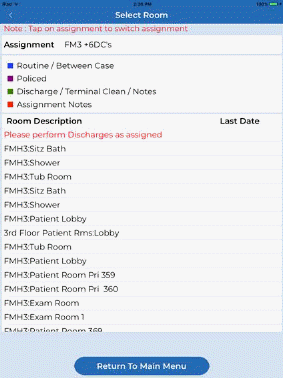
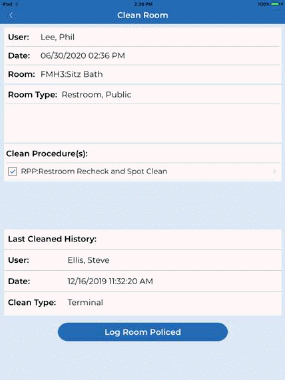
5. Perform the cleaning/policing in the restroom selected as shown above right.
6. Tap on Log Room Policed button when the task is complete. Depending on the room involved, users may have to specify what type of cleaning was performed.
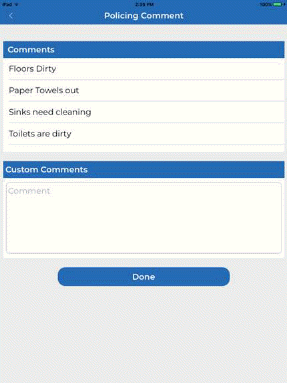
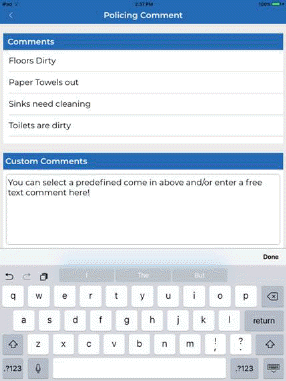
7. Tap the “done” button to complete the room. Rooms that are logged as clean will show at the bottom of the list of rooms as shown in the figure below: