In many cases it is preferable to inactivate a user as opposed to deleting a user. To inactivate a user follow the steps listed below:
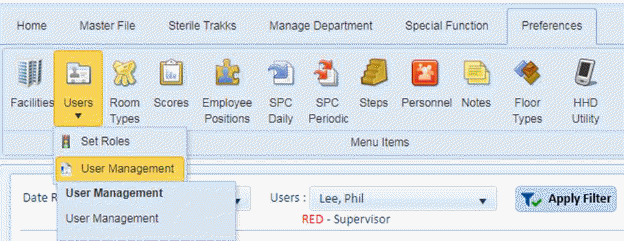
1. Open the Preferences > Users > User Management option as shown in the screenshot below:
You will be shown a screen similar to the one below:
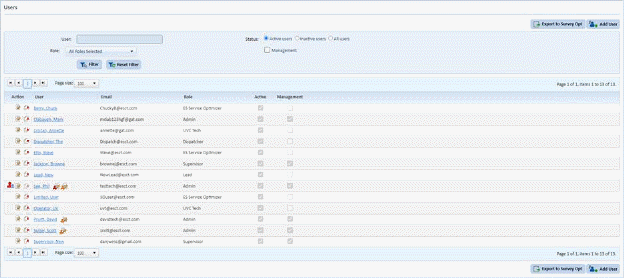
2. Enter the user name in the user search box provided and click “Filter” to see the closest match
3. Click
on the Edit button  or on the name
of the user to display the figure below:
or on the name
of the user to display the figure below:
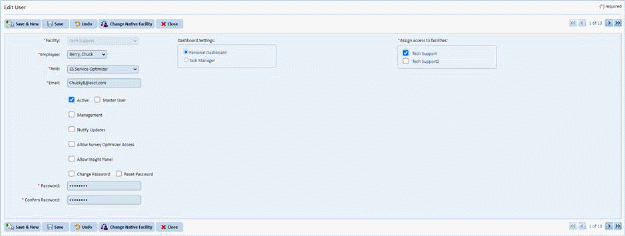
4. Click the “Active” checkbox to deselect it. the dialogue box below will be shown:
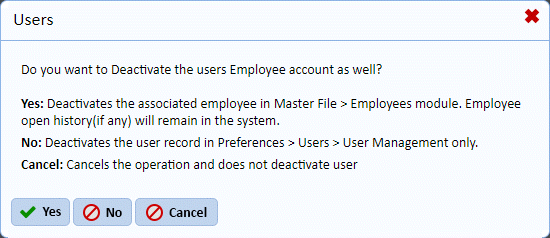
5. Answer the prompt as you wish
6. After
making the above decision (assuming you chose Yes or No), click on the Save
button . To cancel, click on the
Undo button
. To cancel, click on the
Undo button .
.
7. Click
on the Close button  to return to
the Users List.
to return to
the Users List.
8. Repeat steps 2 through 7 for all other users you want to inactivate.