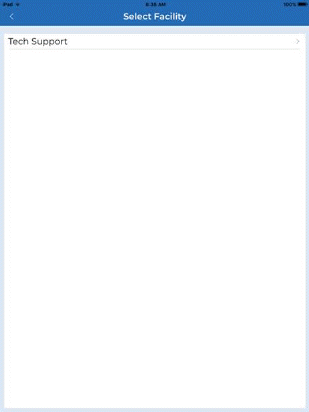
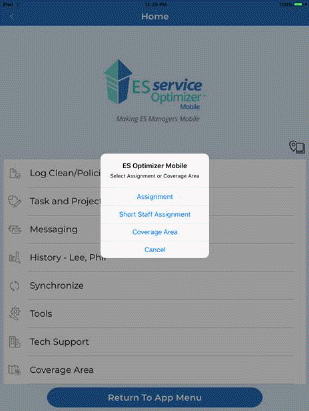
When users (supervisors) successfully log in to ES Service Optimizer Mobile, they will be asked to select the facility (if multiple facilities exist) above left, upon selection the user will be prompted to select an Assignment, Short Staff Assignment, and/or a coverage area as shown above right. The supervisor may make the appropriate selection(s) or Cancel and the Home Menu screen will display as shown below left. The Home Menu screen has several buttons.
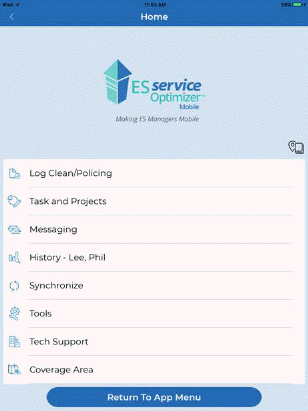
Below are descriptions of each Home Page button:
Assignment/Coverage Area – The Assignment or
Coverage area button  opens the
initial prompt the user sees when first logging into Service Optimizer.
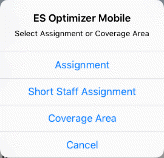
Supervisor may be covering an Assignment, a Short Staffed Assignment, and/or
have a “Coverage Area” or area of responsibility the menu options are shown
below:
opens the
initial prompt the user sees when first logging into Service Optimizer.
Supervisor may be covering an Assignment, a Short Staffed Assignment, and/or
have a “Coverage Area” or area of responsibility the menu options are shown
below:
 .
.
Note: User may also cancel these choices if desired.
Log Clean/Policing – This button opens the Search Room option. Log Clean/Policing function is used to mark rooms cleaned and policing comments. This also helps the user (supervisor) track what is done and what is not done.
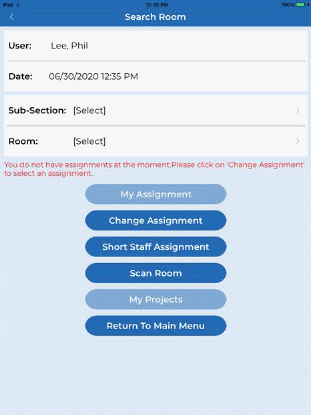
See Log Clean/Policing section for more details about this function.
Tasks and Projects – This button shows all tasks to a user (supervisor). The user can still view a complete listing of outstanding tasks and projects. The user can also schedule tasks and projects for other users (employees) as necessary.
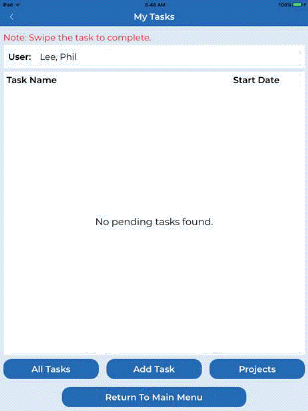
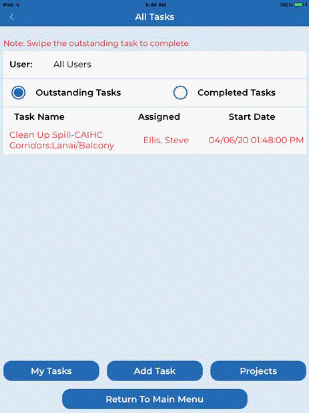
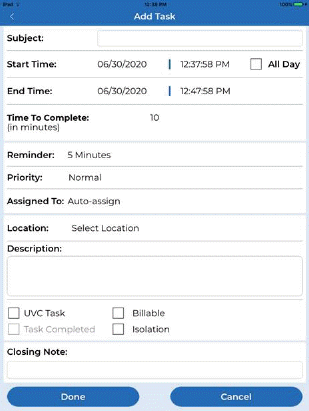
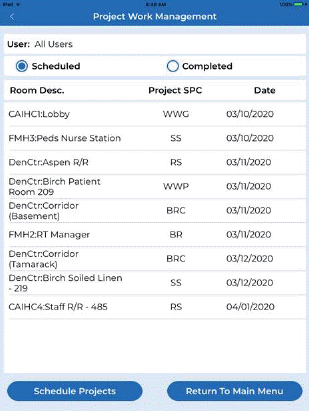
See Tasks and Projects section for more details about Tasks and Project Work Management.
Messaging – This button opens the messaging system. This allows the user (supervisors) to send text messages to other users (employees/supervisors). Users can track who sent the latest message and how many messages have been sent when users are “online.” User who sent the latest message will be shown at the top of the list of Online Users.
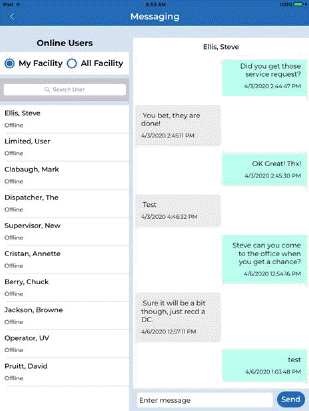
My Facility and All Facility Options allow the user to switch between different user lists if they have access to more than one facility.
View History – This button opens the Cleaned/Policed Rooms so supervisors can view rooms and tasks employees have completed
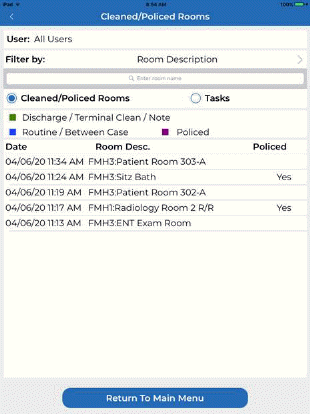
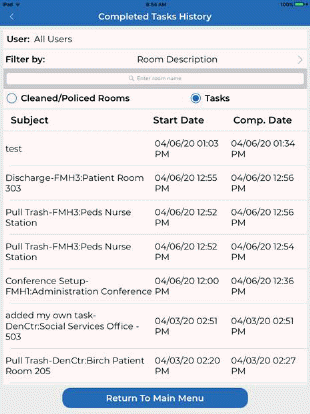
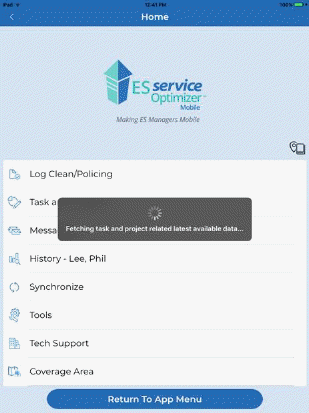
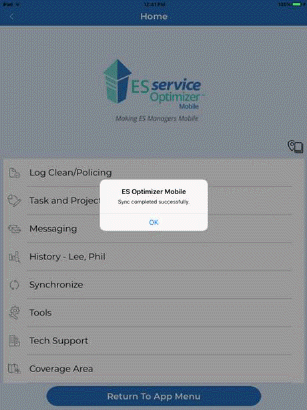
Synchronize – This button synchronizes with data from ES Optimizer. During a synchronization completed and new tasks with be exchanged between ES Optimizer and the mobile application.
Tools – This button opens the Tools Menu. Users have access to additional functions here.
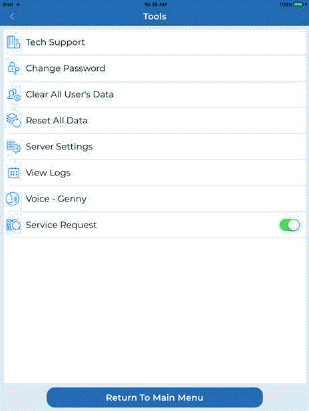
See Tools menu section for more details.
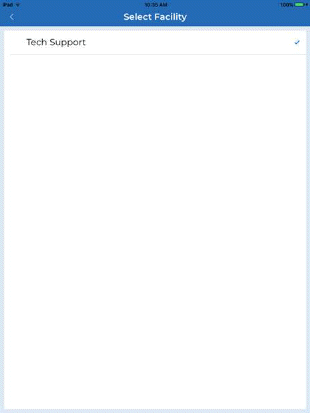
“My Facility” – This button allows the user to switch between facilities when applicable.
Coverage Area – this button allows the supervisor to view, add, or remove a coverage area at any time. The coverage area screen is shown below:
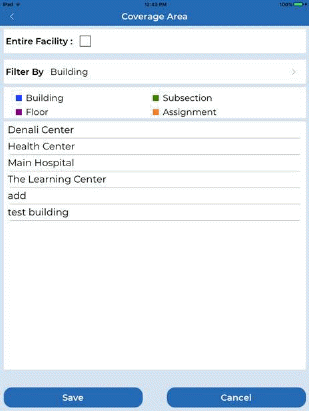
Unchecking Entire Facility (if selected) and tapping the “Filter By” bar allows the user to changes the area of responsibility. “Save” applies any changes made.