 to
open the Employee Training Class List.
to
open the Employee Training Class List.ES Optimizer comes with a pre-defined set of training sessions. However, there will be times when classes are not available in ES Optimizer and need to be entered.
Below is the procedure to add new classes.
1. Click
on the Employee Training button to
open the Employee Training Class List.
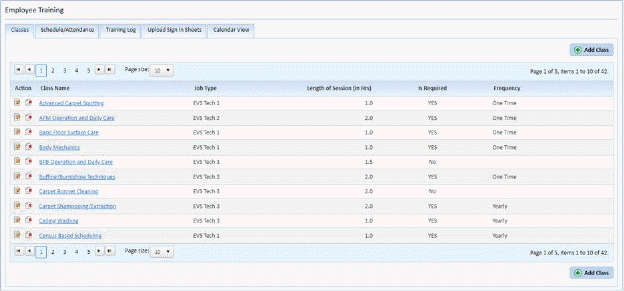
2. While
in the Classes Tab, click on the Add Class button  . You will display the figure below:
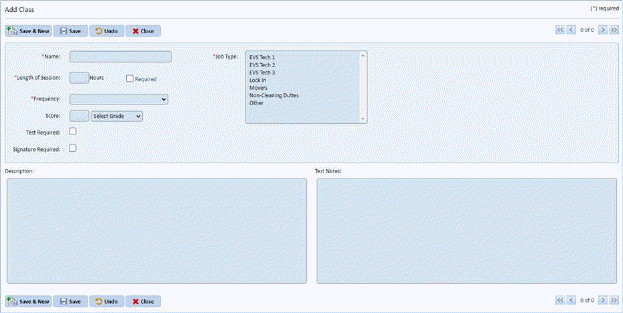
3. Now you can start entering the information in the following fields:
Name – This field specifies the name of the class.
Job Type – This field specifies whether the class involved is a EVS Tech I, EVS Tech II, EVS Tech III, or a combination of job types.
Length of Session – This field specifies how long the class takes to finish.
Required – This checkbox specifies if employees are required to take the class or not.
Frequency – This field specifies how often employees take the class.
Score (Select Grade) – Enter the score threshold and the grade (Pass or Fail) for scores that receive that grade or higher.
Test Required – Select if a test/Quiz will be required.
Signature Required – Select if using a mobile device to complete the class and you wish to require the employee’s signature when training has been completed.
Description – This field contains the specific details of the class.
Test Notes – This field contains the test involving the class.
4. After
entering all the information in each of the fields, you can save your class by
clicking on the Save button . To
cancel, you can click on the Undo button
. To
cancel, you can click on the Undo button  and all information is removed allowing
you to start at the beginning.
and all information is removed allowing
you to start at the beginning.
5. Click
on the Close button  to return to the
Classes List.
to return to the
Classes List.
6. Repeat steps 2 through 5 for all other training classes you want to add.
Note: The Save &
New button  lets you save the
class and begin entering another class immediately.
lets you save the
class and begin entering another class immediately.