 tab and Click on the
Mass Update button
tab and Click on the
Mass Update button  and select the
 tool to view all the patient rooms
and their official bed numbers as shown below:
tool to view all the patient rooms
and their official bed numbers as shown below:Before any census can be performed, beds must be available in patient rooms. Please review your patient rooms and their associated beds before working on the census.
To review your beds, please do the following:
1.
Navigate to the tab and Click on the
Mass Update button and select the
tool to view all the patient rooms
and their official bed numbers as shown below:

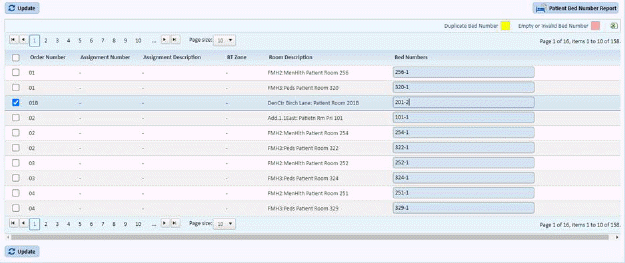
2. You can change the bed numbers column and as you do the rooms will auto-select. As shown below:
3. You
can simply tap the “Update” button  .
.
4. You
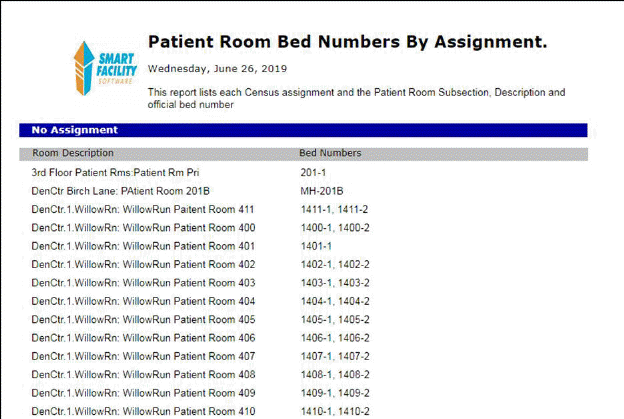
may choose to print the  located on
the same page to view the list in a report format as shown below.
located on
the same page to view the list in a report format as shown below.
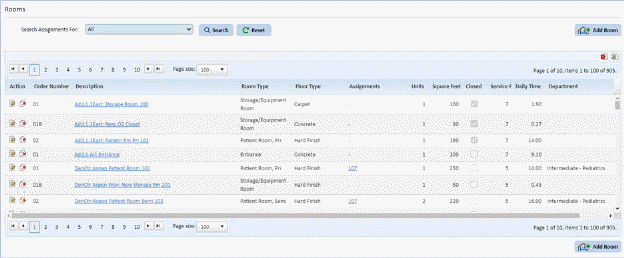
5. You may update the beds in the rooms module if desired - Refer to Working with Rooms Form for more information on searching rooms. See the sample Rooms List below as a sample:
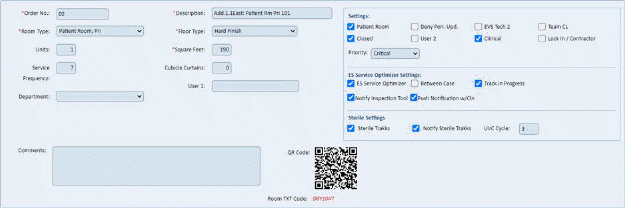
6. After selecting all the patient rooms, check the following information in the Room Form:
Patient Room Check Box  – In order to have the patient bed
numbers specified for a particular patient room, the check box must be filled as
shown in the figure below:
– In order to have the patient bed
numbers specified for a particular patient room, the check box must be filled as
shown in the figure below:
Units 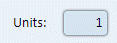 – The number of beds must be specified
in the Units field.
– The number of beds must be specified
in the Units field.
Official Hospital Numbers  – The Bed Number Fields must have the
appropriate information. The number of fields listed in the figure below
will depend on the number of units specified in the Units field. For
example, if the number of units is three (for a Patient Room Tri)
– The Bed Number Fields must have the
appropriate information. The number of fields listed in the figure below
will depend on the number of units specified in the Units field. For
example, if the number of units is three (for a Patient Room Tri) 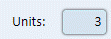 , you will see three fields in the Official
Hospital Numbers field as shown below:
, you will see three fields in the Official
Hospital Numbers field as shown below:

7. After entering all the necessary changes in the bed information, save the information by clicking on the Save button.
8. Go to the next patient room and repeat steps 3 and 4.