 to open Comments Form:
Below are the steps to edit existing inspection step comments:
1. Select an inspection with comment(s) you want to update.
2. Select the step with the comment(s) you want to update.
3. Click
on the Comment field with the “Y” to open Comments Form:
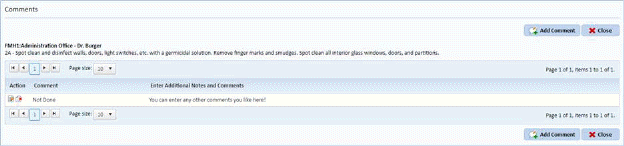
4. Select the comment you want to update.
5. Click
on the Edit button  before the
selected comment. You will open the figure below:
before the
selected comment. You will open the figure below:
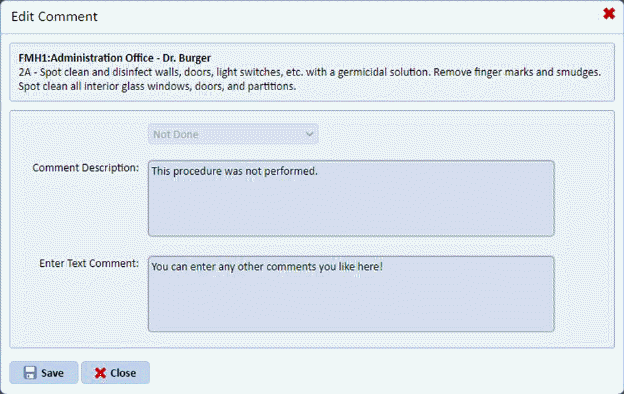
6. Make the changes to your comment.
7. Click
on the Save button  after finishing
with the changes in the comment. To cancel, click on the Close button
after finishing
with the changes in the comment. To cancel, click on the Close button .
.
8. Repeat steps 3 through 7 for all other comments you wish to change in the same inspection step.
9. Click
on the Close button to return to
the inspection being updated.
10. Repeat steps 1 through 9 for all other inspection comment(s) you wish to modify.
NOTE: Inspections may also be scheduled and performed from within the ES Optimizer Mobile application. Please see the ES Optimizer Mobile section for more information.