 to open the Comments Form. Below
is a sample figure:
to open the Comments Form. Below
is a sample figure:Below are the steps to delete/remove comments from a particular step in an inspection:
1. Select an inspection with comment(s) you want to remove.
2. Select the step with the comment(s) you want to remove.
3. Click
on the Comment field with the “Y” to open the Comments Form. Below
is a sample figure:
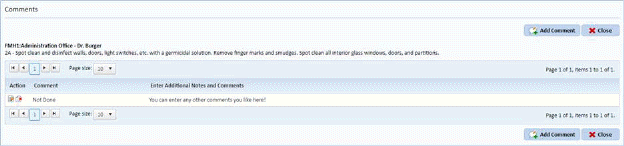
4. Select the comment you want to delete.
5. Click
on the Delete button  to remove the
existing comment. You will receive the confirmation figure below:
to remove the
existing comment. You will receive the confirmation figure below:
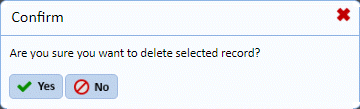
6. Answer the prompt.
7. Repeat steps 4 through 6 for other comments you want to delete from the same inspection step.
8. Click
on the Close button  after
comment(s) have been deleted.
after
comment(s) have been deleted.
9. Repeat steps 1 through 8 for all other inspection steps you want to update.