 to open
the Departments List.
to open
the Departments List.Below are the steps to delete notes from a department record:
1. Click
on the Departments button to open
the Departments List.
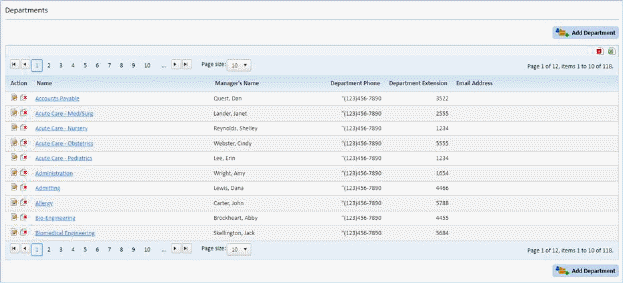
2. Select the department that you want to delete a note.
3. Click
on the Edit button  or on the
department to open the figure below:
or on the
department to open the figure below:
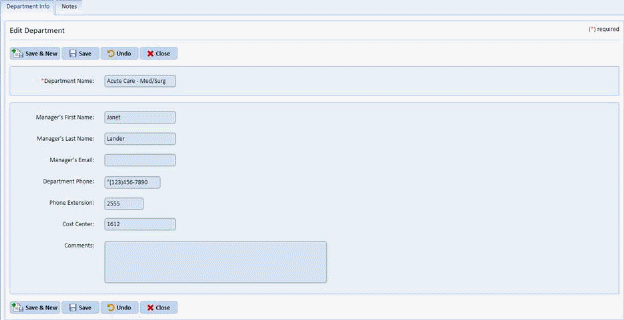
4. Click on the Notes tab to receive the figure below:
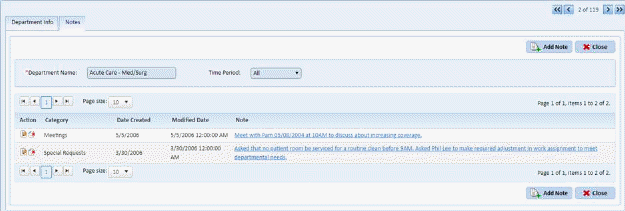
5. Click
on the Delete button  before the
Category and Date for the note.
before the
Category and Date for the note.
6. Answer the prompt below:
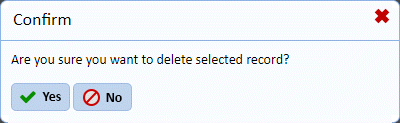
7. Repeat steps 5 through 7 for all the notes you wish to delete from the same department.
8. Click
on the Close button  to go back to
the Departments List.
to go back to
the Departments List.
9. Repeat steps 2 through 8 for all other departments with notes you want to remove.