 to open the
Buildings List.
to open the
Buildings List.Before deleting a building from ES Optimizer, determine whether the building has a history (quality reviews, daily assignments, project work, and etc.) We do not recommend deleting a building with a history. In addition, it is critical to understand that when a building is deleted, all linked floors, subsections, and rooms are deleted.
Below are the steps to delete a Building record:
1. Click
on the Buildings button to open the
Buildings List.
2. Select the building record you want to delete.
3. When
you have selected the building record you want to remove from your database,
click on the Delete Building button  before the building name. If the
building record does not have any floors, subsections, or rooms associated with
the building, you will be prompted with the confirmation message below:
before the building name. If the
building record does not have any floors, subsections, or rooms associated with
the building, you will be prompted with the confirmation message below:
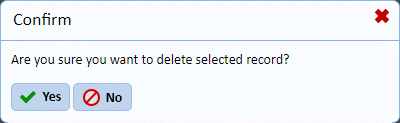
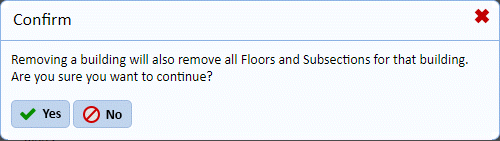
If the building record has floors, subsections, and rooms associated with the building, you will be prompted with the warning message below:
4. Answer the prompts.
5. Repeat steps 2 through 4 for all other Building records you want to delete.