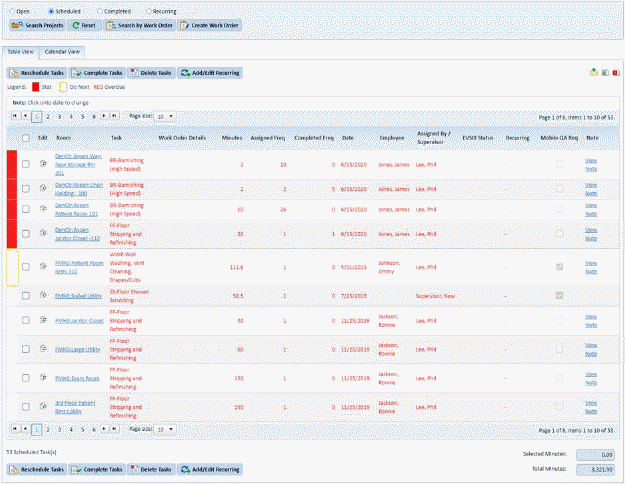
Creating Work Orders in ES Optimizer is a simple process. You can search your projects and clear by work order. Users can create work orders from existing scheduled rooms or tasks. Below is the process to create work orders from existing scheduled tasks:
1. While in Project Assignments Module, ensure that you have the “Scheduled” option selected as shown in the sample figure below:
2. Select the rooms/tasks you want to include in the Work Order by clicking on the check boxes before the room/task:
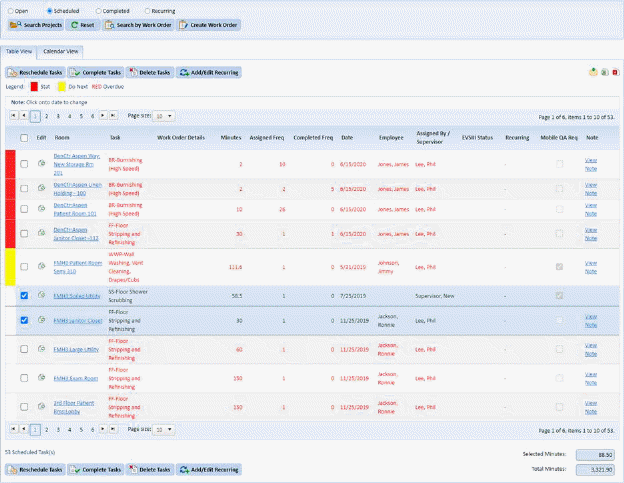
3. Click
on the Create Work Order button .
You will get a figure like the one below:
.
You will get a figure like the one below:
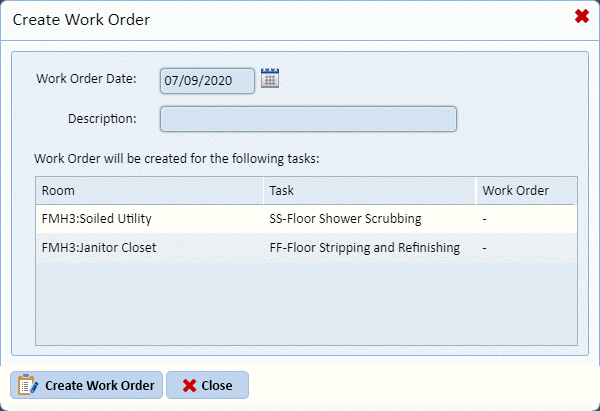
4. Enter the Work Order Date and the Description for the Work Order.
5. Click
on the Create Work Order button  and
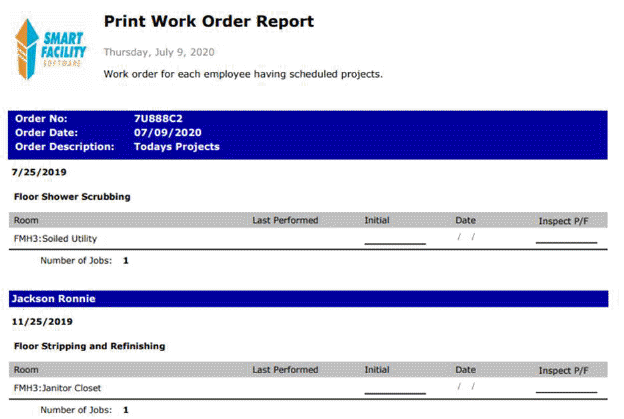
you will generate a print out like the figure below:
and
you will generate a print out like the figure below:
NOTE: By design, work orders are tasks that should be expedited when time is available. ES Optimizer has a default setting that helps the user to manage the open work orders whereby if a Work Order exceeded 30 days, the system would clear the work order. That setting can be changed in the Facility Form under the Settings Tab as shown in the figure below:
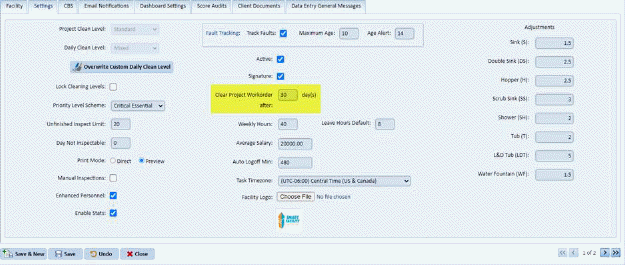
Setting the value of the “Clear Project Workorder after” field to zero (0) will stop the system from clearing the work order automatically.