 to open the page below:
Below is the process to create Short Staff Assignments:
1. While
in the Daily Assignments Module, click on the Short Staff Assignments button
to open the page below:
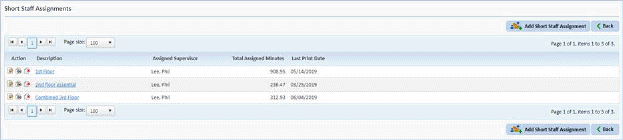
2. Click
on the Add Short Staff Assignment button  to open the figure below:
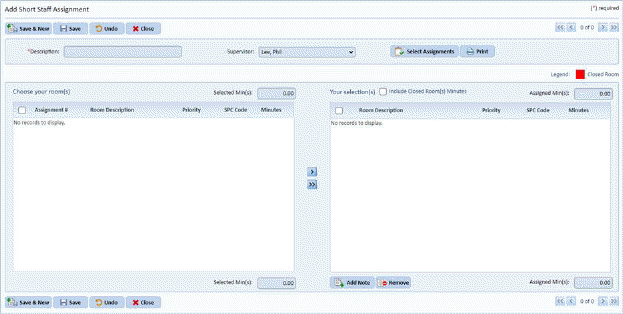
3. Enter the necessary information for Description and Supervisor:

4. Click
on the Select Assignments button  to
open the figure below:
to
open the figure below:
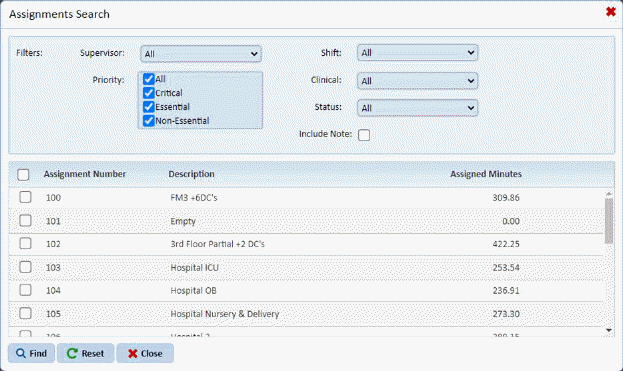
5. In the Assignments Search pop-up, select the assignments you wish to use to make the short staffed assignment.
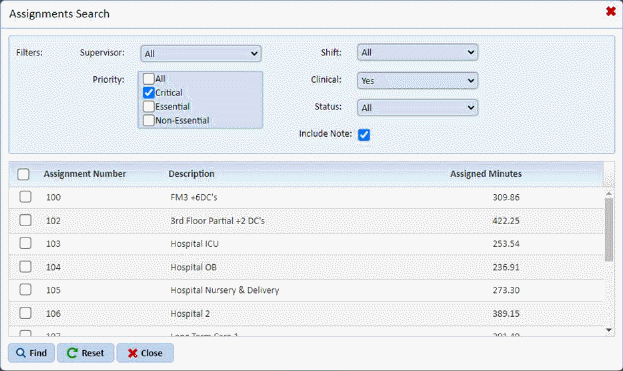
You can filter assignments out depending on the settings you specify.
6. Click
on the Find button  to display the
list of resulting rooms for the selected assignments as shown below:
to display the
list of resulting rooms for the selected assignments as shown below:

7. Select the rooms you want to include in your Short Staff Assignment.
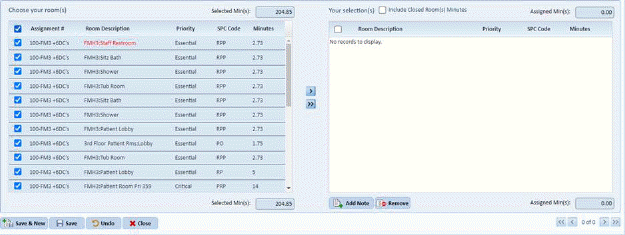
8. Click
on the “Add” button  to reflect your
selections. If you want to move all of the rooms selected, click on the
“Add All” button
to reflect your
selections. If you want to move all of the rooms selected, click on the
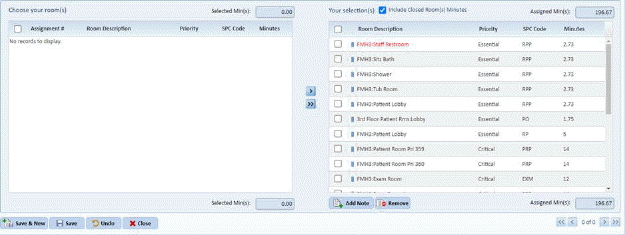
“Add All” button . In the figure
below, only those selected rooms are moved.
. In the figure
below, only those selected rooms are moved.
NEW: Closed Rooms
(those shown in red) can be added to a short staffed assignment, but you may
decide to include the minutes for closed rooms by checking the Include Closed
Room(s) Minutes checkbox  .
.
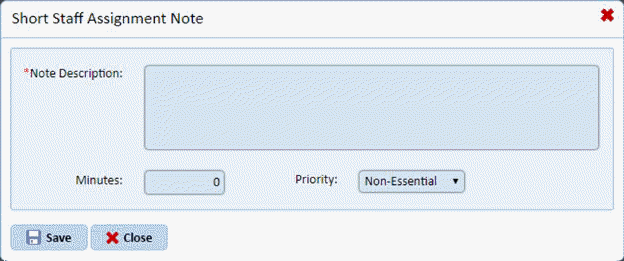
9. At
this point, you can add notes to your Short Staff Assignment by clicking on the
Add Note button .
.
10. You also
have the choice of removing rooms for your list of selections if they do not fit
your needs. Simply select those you wish to remove and use the  button. You can also re-order the
rooms using the
button. You can also re-order the
rooms using the  button so that they
follow the order you specify.
button so that they
follow the order you specify. 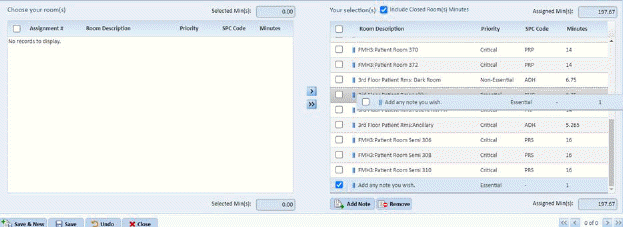
11. If you are
content with your Short Staff Assignment, click on the  button. To discard changes, click
on the
button. To discard changes, click
on the  button.
12. To discard
the entire Short Staff Assignment you can use the  button.
13. You can create additional Short Staff assignments by clicking on the Save & New button and repeating steps 3 to 11.