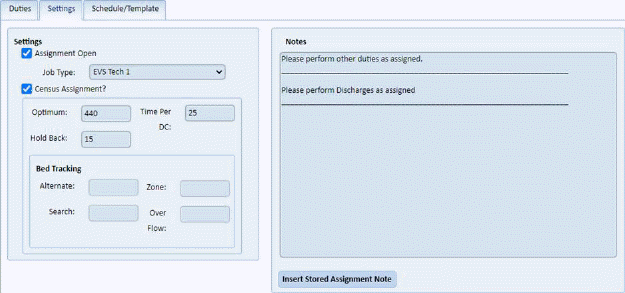
Below is the procedure to add stored notes:
1. Go to the Assignment you wish to modify with a stored assignment note.
2. Click on the Settings Tab. You will open the figure below:
3. Click
on the Insert Stored Assignment Note button . You will see the figure below:
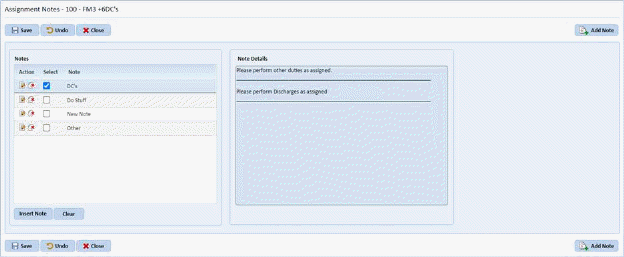
4. Click
on the Add Note button  to receive
the figure below:
to receive
the figure below:
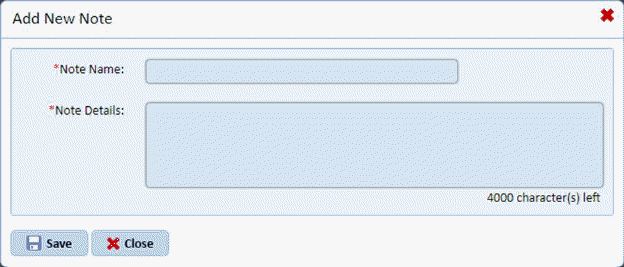
5. Enter the necessary information.
6. Click
on the Save button  to save the new
Stored Note or click on the Close button
to save the new
Stored Note or click on the Close button  to cancel.
7. Repeat Steps 4 through 6 for all other assignment notes you wish to store.