 was developed for that reason. Below is
the process to use this tool:
was developed for that reason. Below is
the process to use this tool:There will be times when facilities will require certain
tasks (duties/notes) be done multiple times in an assignment or in multiple
assignments. The Copy Insert button was developed for that reason. Below is
the process to use this tool:
1. Select an assignment that has duties or notes that need to be copied. Below is an example:
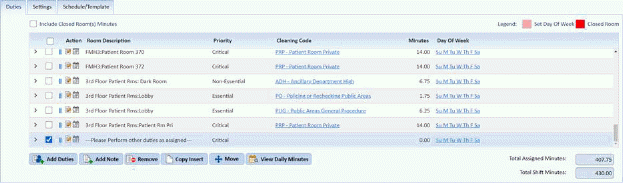
Notice that 1 duty is selected.
2. Select duties/notes to be copied.
3. Click
on the Copy Insert button You will
be prompted with the figure below:
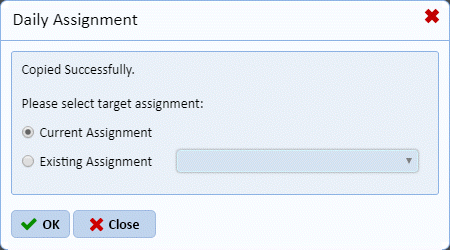
4. Answer the prompt. For this example, the copied rooms will be duplicated in the same or current assignment. Notice the message prompt as shown in the figure below:
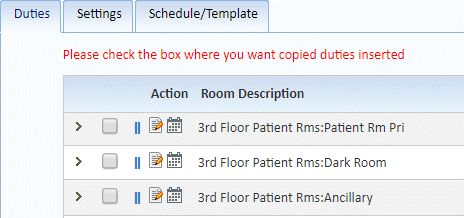
5. As stated, click on the check box where the copied duties will be placed: You will get prompted with the figure below:
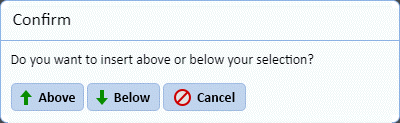
6. Answer the prompt. The Above button means the copied duties will be placed above the checked duty/note. The Below button means the copied duties will be placed below the checked duty/note. The Cancel button means no duplication will be done.
NOTE: If the selected duties in question do not have the necessary cleaning frequency to be duplicated, you will be prompted with the figure like the one below:
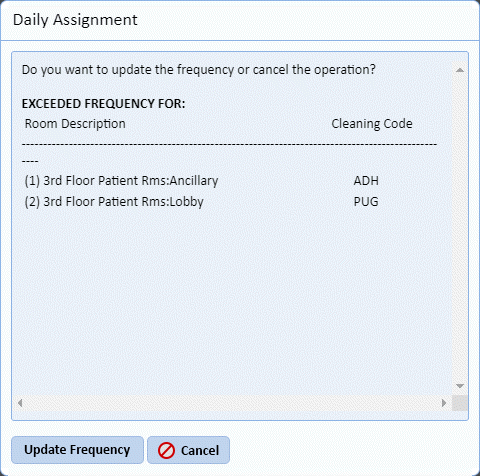
7. Answer the prompt shown above.
8. After clicking on the Above button or Below button, the user will be prompted with the figure below:
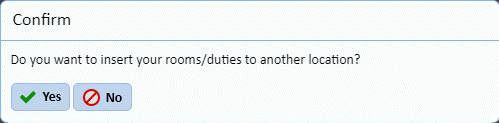
Click on the Yes button to insert the copied duties in other areas of the assignment list. Click on the No button if done.
9. Repeat steps 2 through 6 for all other duties/notes to be duplicated.
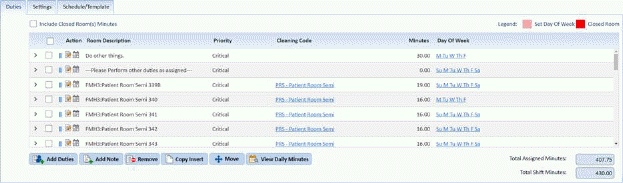
The figure above shows an example of duties being copied and inserted within the same assignment.