Completing Training classes can be completed on the web and also within the ES Optimizer Mobile Application. Please see the ES Optimizer Mobile Section – Employee training on how to complete training on a mobile device. To complete the class within ES Optimizer on the web follow the steps below:
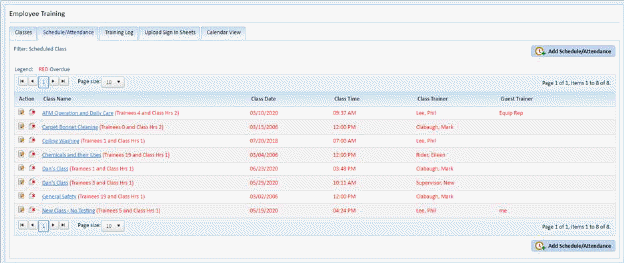
1. In the Employee Training Module, click on the Schedule/Attendance Tab. You will open the figure below:
2. Use
the Find Button  to filter class to
Scheduled Class you will see the screen below:
to filter class to
Scheduled Class you will see the screen below:
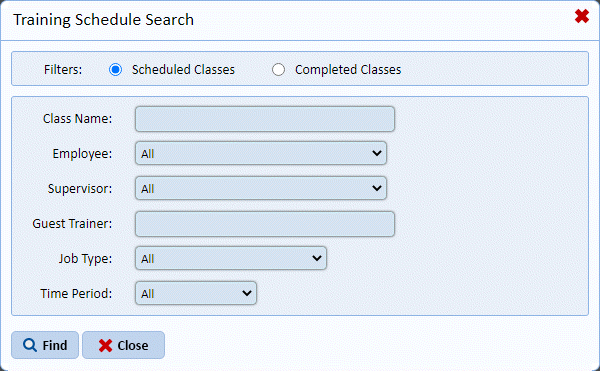
3. Enter the criteria you wish in the selections above to view the class or classes you wish to see.
Note: You may also choose “Completed Classes” to view the classes completed for the search criteria you specify.
4. Click on the class you wish to complete. The blank screen will be shown Edit Schedule/Attendance screen will display as shown below.
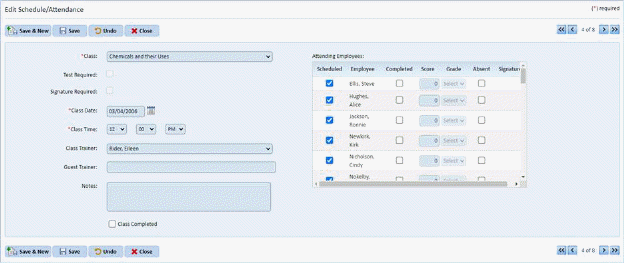
5. Check the Scheduled box for each employee who attended the class. If test required is checked enter the score the employee received, set Pass/Fail or Absent if they did not attend.
6. Once
all employees have been entered please check “Class Completed” check box in the
lower left and click the Save button  .
.
NOTE: The signature column will be populated if the training you are viewing had been completed using ES Optimizer Mobile application and signature was required. Also option(s) that were not selected such as “Test Required”, “Signature Required” “Score” and “Grade” will be grey and unelectable.