 to open the
Personnel module.
to open the
Personnel module.ES Optimizer allows you to edit the employee’s activities.
Below are the steps to edit the employee’s hourly activities:
1. Click
on the Personnel button to open the
Personnel module.
2. On
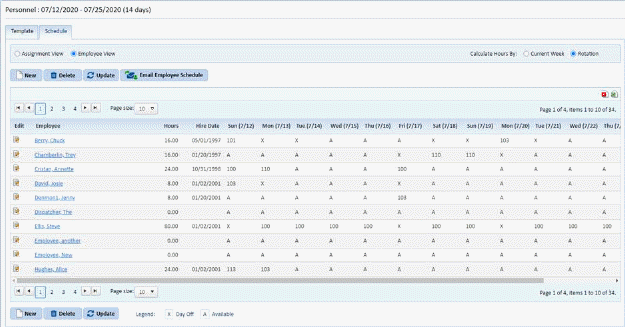
Schedule Tab select Employee View option  to display the figure below:
3. Click
on the Edit button  in Edit column
for a selected employee
in Edit column
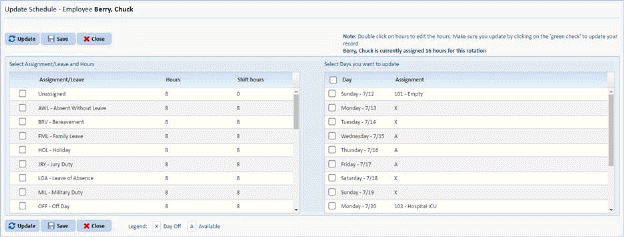
for a selected employee 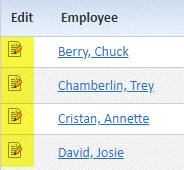 and you will open
the figure below:
and you will open
the figure below:
4. You
can select the activity and enter the hours for that activity in the left table
and then select dates in the right table and click on Update button . This is similar to updating the
schedule in the Assignment view. However, in this case the changes are
made on a per employee basis. Below is an example:
. This is similar to updating the
schedule in the Assignment view. However, in this case the changes are
made on a per employee basis. Below is an example:
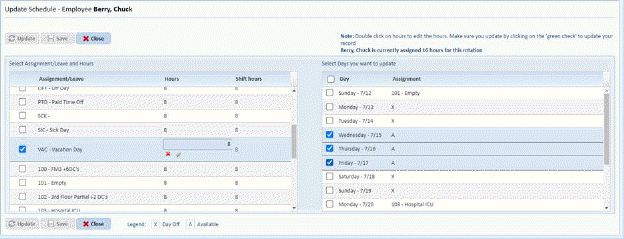
Note: In the example above the daily hours are being edited. Please edit and click the green check mark before proceeeding to the next step.
5. If you
are satisfied with the changes then click on the Save button  . To cancel, click on the Close button
 .
.
6. Repeat steps 3 through 5 for all other employee hourly activities you want to update.