 to open the
What If form.
to open the
What If form.This option allows you to create what if scenarios based on the SPC codes of the rooms.
Below are the steps:
1. Click
on the What If button to open the
What If form.
2. While in the Daily tab, select the What If Applied by SPC Code option.

3. Specify the code original code to change and the new code to be applied.

4. If you
wish to apply the changes to selected rooms, click on ‘Select Rooms to Make
Changes to’ button .
.

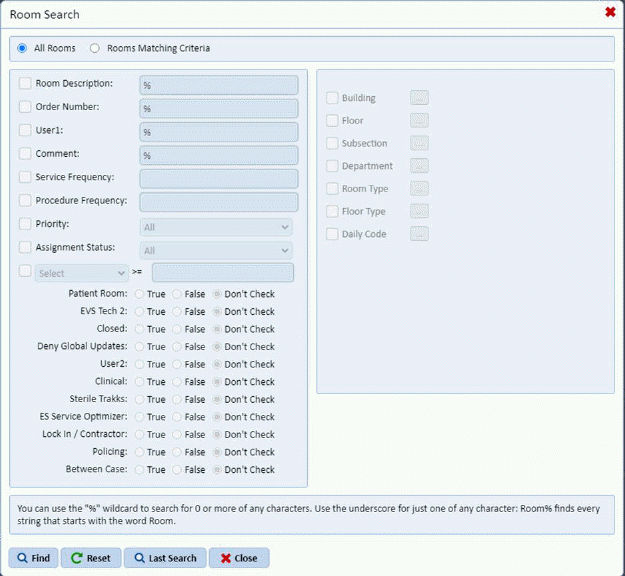
The dialog box below will open:
5.
Specify criteria for the rooms to update. Click on the Find button  after specifying the criteria for the
rooms.
after specifying the criteria for the
rooms.
If you wish to verify the rooms
selected click on the View Filter button  .
.
6. Click
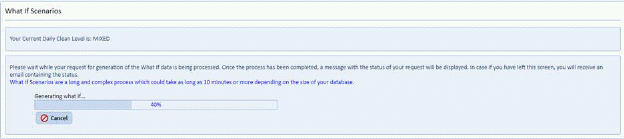
on the Print What If Report button  to see a list of rooms potentially
affected. You will receive the figure below:
to see a list of rooms potentially
affected. You will receive the figure below:
7. You will be prompted with the figure below:
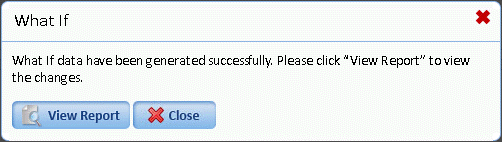
Answer the prompt.
8. If you
are satisfied with the proposed changes, click on Execute Changes button  and ES Optimizer will set all the
applicable selected rooms to proposed new cleaning code.
and ES Optimizer will set all the
applicable selected rooms to proposed new cleaning code.