 to open the
Calendar:
to open the
Calendar:1. Click
on Calendar button to open the
Calendar:
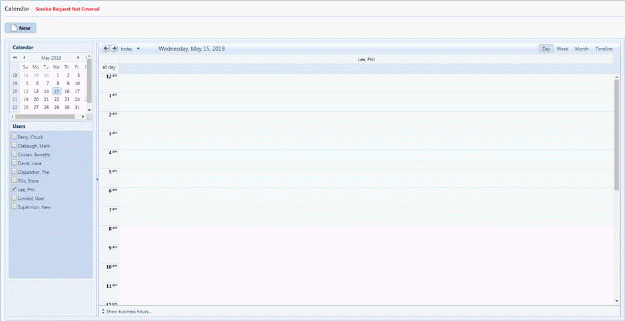
2. You
can add tasks by clicking on “New” button  and you will receive the form below:
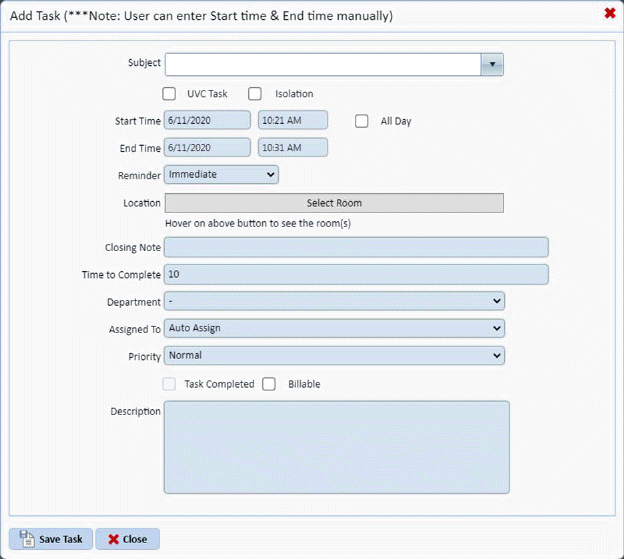
3. Fill in the information as necessary in the fields provided.
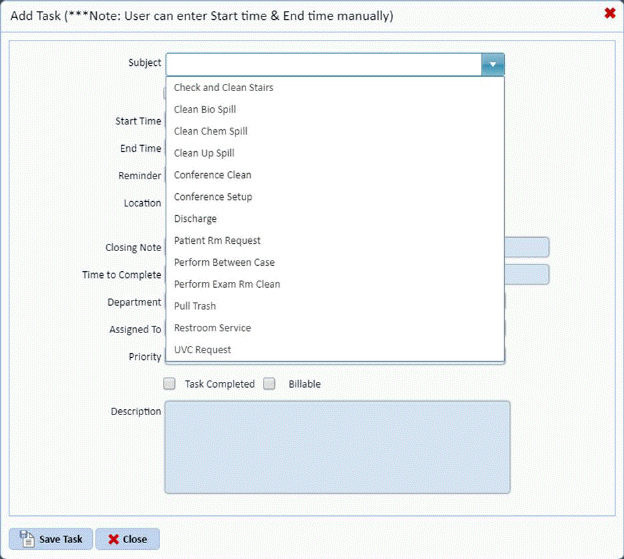
Notice that the Subject field allows the user to enter their own subject or choose one from a list of “common tasks” or you can type in any task title you desire.
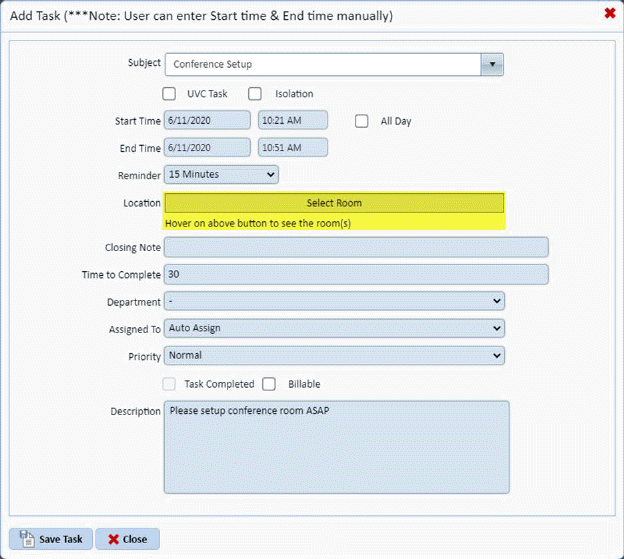
Users can also specify locations/room(s) with the Select Room button. This is applicable if the location/room in question is within the facility.
Note: The Auto Assign feature allows the automation of the task to assigned employee via Daily Assignment or Coverage Area. User may also select a user to assign the task to manually.
Once complete you can click on
the Save Task button . Otherwise, click on
the Cancel button
. Otherwise, click on
the Cancel button .
.
4. Repeat steps 2 through 4 for all other tasks you want to enter.