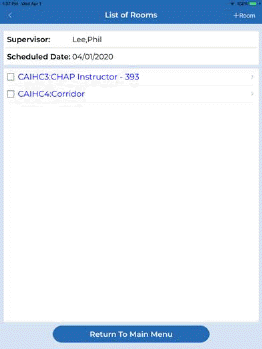
Adding rooms to an existing inspection is a frequently requested feature that is included in the ES Optimizer and ES Optimizer Mobile. This allows users to add rooms to inspection dates while they are in the middle of their inspection routine. Thus, the add room feature produces an improved workflow for supervisors.
Below are the steps to add a room to an inspection on demand:
1. In ES Optimizer (formerly Quality Management), select the supervisor in charge of the inspection.
2. Select the date of the inspection you want to perform.
3. Tap the “+ Room” button to add a new room to the inspection. A display screen like the one below will open:
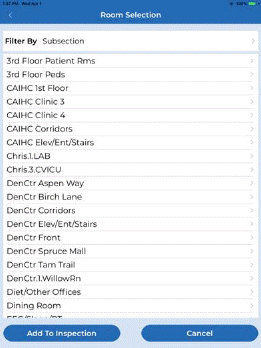
4. Select the Subsection where the room is located or change the Filter by Option as needed.
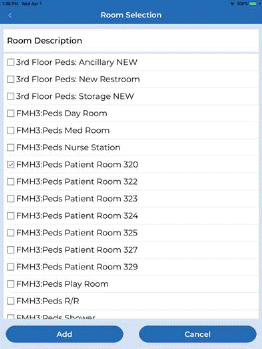
5. Select the Room you wish to include to the inspection.
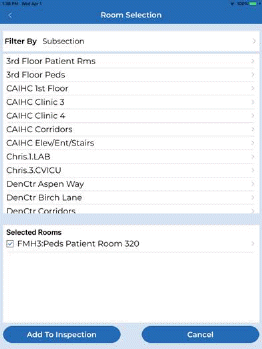
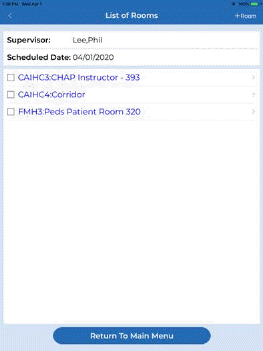
6. Tap the Add button to open the screen below:
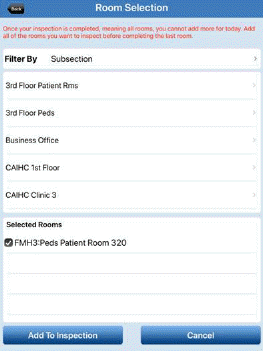
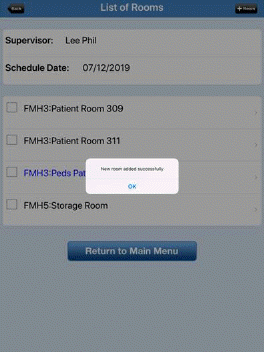
7. Tap the Add To Inspection button or repeat steps 4 through 6 to add more rooms, when finished tap Add To Inspection and the room/s will be included in the current inspection.
Note: As of ES Optimizer Mobile v6.0 dated March 20, 2020 users are able to add to an inspection at any time, even if all the rooms for today have been completed.