New with ES Optimizer Mobile v6.2 is the ability to add any project to be completed while an EVS technician is in the room performing daily cleaning. For example, you may wish to add the ability to change cubicle curtain(s) and log them as changed (completed).
The following steps could be used to add a periodic SPC to all Patient Room, Pri rooms with Hard Finished floors and enable it to be performed during the daily room clean.
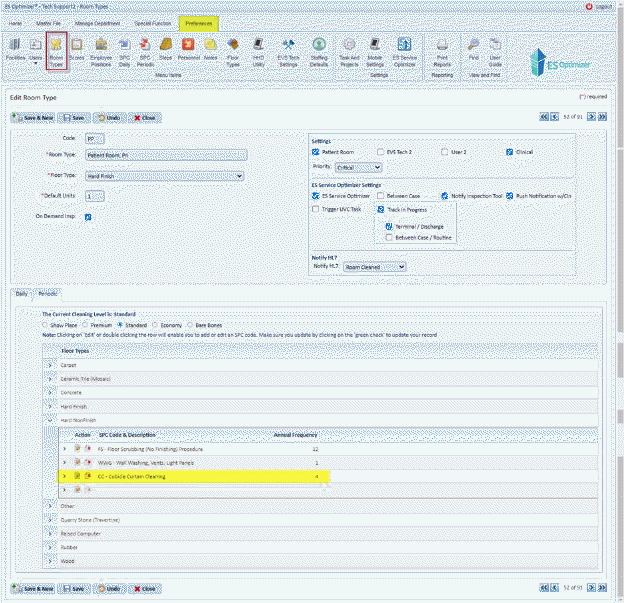
1. In Preferences, open the Room Types module.
2. Open the room Type that should contain the SPC Periodic code you wish to be completed during daily cleaning. In this example we will use Patient Rooms and the SPC Periodic code “CC”.
3. Review the Room Types where the desired SPC Periodic code would be allowed to be completed. You will notice the SPC “CC” is present in the room type so you can skip to Step 4.
If the “CC” code was not present, you may add it to the room type using the edit icon, select the SPC Code “CC” and click the green checkmark as shown below:
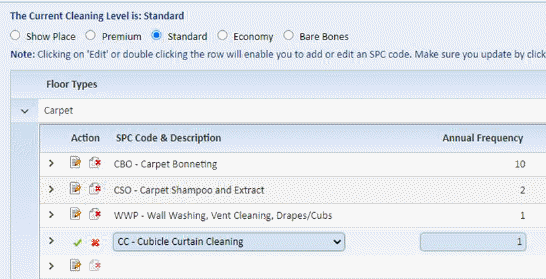
Please Save the room Type using the green check mark icon
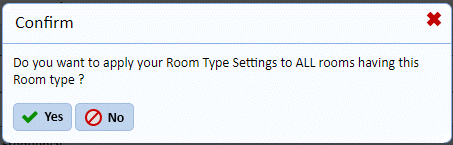
 and answer the prompt “Yes” to
apply your settings to all rooms with that type as shown below:
and answer the prompt “Yes” to
apply your settings to all rooms with that type as shown below:
4. The next step is to edit the SPC Periodic code and select “Show in Room Cleaning” as shown below:
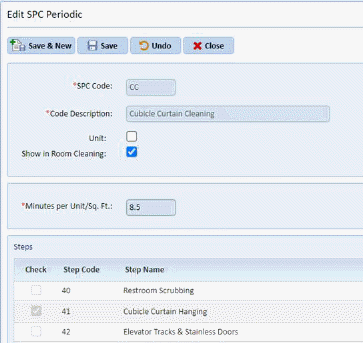
5. Click “Save” to save your selection. NOTE: In this case there is an option labeled “Unit”, If selected, the number of curtains in the room record will be multiplied by the “Minutes per Unit/SqFt” to calculate the time to complete the task. If this box is not selected the standard Minutes per Unit/SqFt will be used.
6. Repeat the above steps 1-5 for all room types and SPC Periodic codes you wish to enable.
In Service Optimizer Tech Mobile – Log Clean/Policing – The option for cubicle curtains will now be shown as seen below:

NOTE: You may also enter the SPC in a single room in the Master File > Rooms module. It is also advisable to toggle the What-if Daily module to ensure all existing rooms types selected in step 3 will contain the desired SPC periodic codes. Please contact Technical Support at 800-260-8665 Option #2 if you need assistance with this process.
Other Periodic SPC codes may be enabled as well. If projects are scheduled and are displayed during a daily room clean color coding is applied as explained below:
:
a. Green color -If project is scheduled today
b. Orange color – If project is scheduled in last 7 days
c. Red color – If project is scheduled more than 7 days ago.
Black color – If no project is scheduled
- If there is an incomplete project (WWG) scheduled today (or before today) and if user cleans the room with same periodic SPC then the project is marked as “Complete”.
When projects are cleaned from ESSO – Room cleaning then then SPC are shown as comma separated in ES Service Optimizer > History tab and Patient room tabs. (E.g. CSC, WWG). Project data will also be available in Manage Department > Periodic Assignments module.