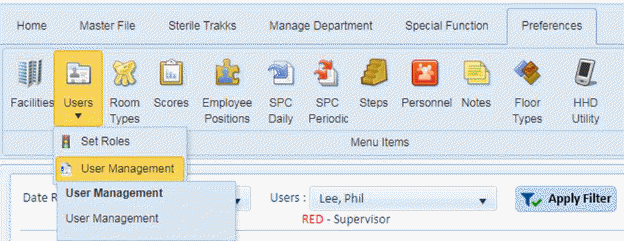
Below is the procedure to add users in ES Optimizer:
NOTE: Only employees entered in the ES Optimizer system can be added as users.
1. Open the Preferences > Users > User Management option as shown in the screenshot below:
You will be shown a screen similar to the one below:
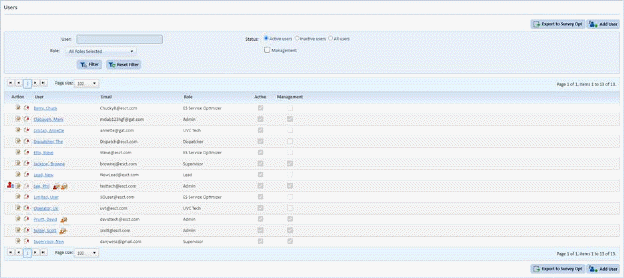
2. Click
on the Add User button  to display
the figure below:
to display
the figure below:
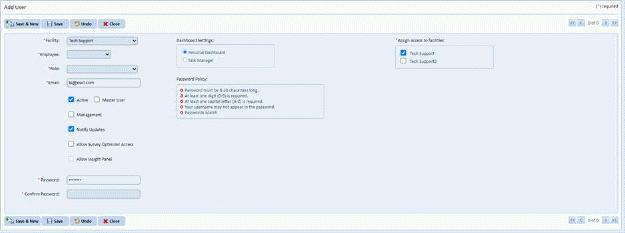
3. Select the new user from the Employee drop down field
4. Select the Role for the new user.
5. Specify the email address of the user.
6. Enter the password for the new user.
7. Confirm the password for the new user.
8.
Specify the facility or facilities the user is entitled to access: 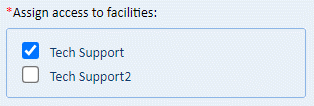 .
.
9. Click
on the Save button  to save the new
user. To cancel, click on the Undo button
to save the new
user. To cancel, click on the Undo button .
.
10. Click on
the Close button  to return to the
Users List.
to return to the
Users List.
11. Repeat steps 2 through 10 for all other users.