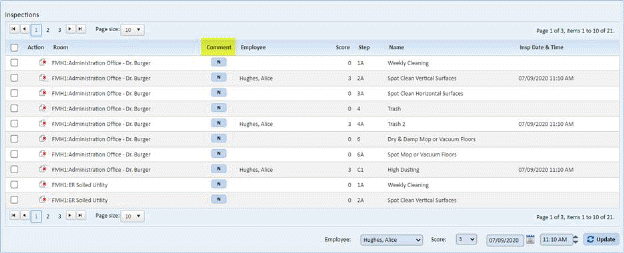
Below are the steps to add inspection step comments:
1. Select a step you want to enter comments.
2. Click
on the  for the step you want to
comment and you will open the figure below:
for the step you want to
comment and you will open the figure below:
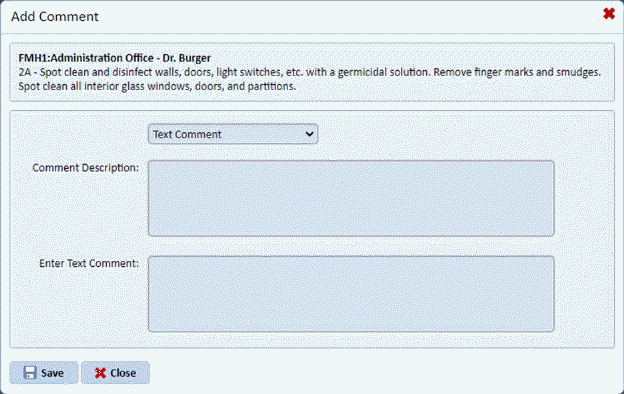
3. From here you can select a pre-defined comment. You can also enter additional comments that the pre-defined comments lack.
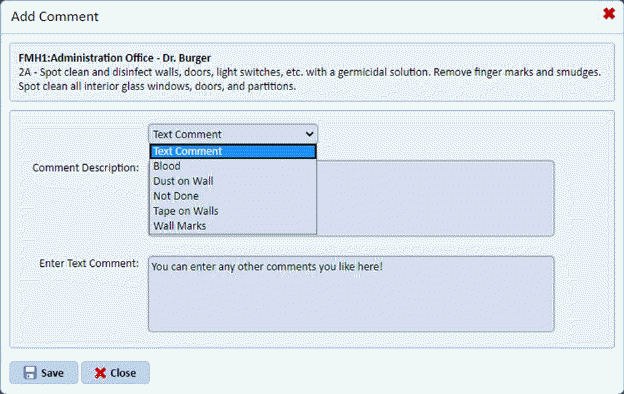
NOTE: You do not have to select a pre-defined comment. The pre-defined comments help simplify tasks when possible. See figure above for a sample comment.
4. Click
on the Save button  to save the
comments. You will see the figure below:
to save the
comments. You will see the figure below:
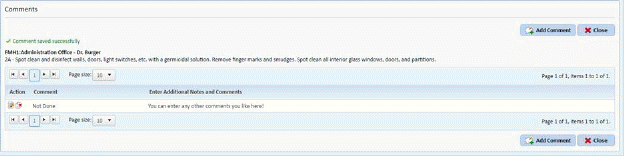
The dialog box above allows you to add, delete, or edit existing comments for an inspection step.
5. To add
additional comments to the same step, click on the Add Comment button  and repeat steps 3 and 4.
6. Click
on the Close button  to go back to
the Inspection. You will see a figure like the one below:
to go back to
the Inspection. You will see a figure like the one below:
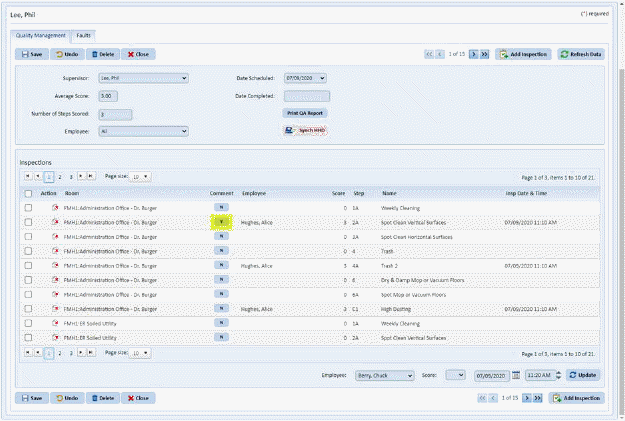
Notice the N button turned into a Y button  to signify that the step has
comment(s).
to signify that the step has
comment(s).
7. Repeat steps 2 through 6 for all other additional comments for other steps.
8. If you
are satisfied with the changes in the inspection, click on the Save button for the inspection.