 to open the
Floor Types List.
to open the
Floor Types List.To add more floor types to your ES Optimizer system, please follow the steps listed below:
1. Click
on the Floor Type button to open the
Floor Types List.
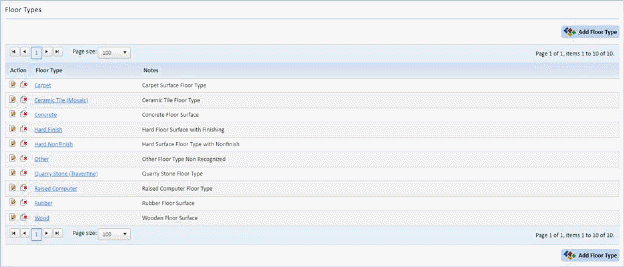
2. Click
on the Add Floor Type button  to
display the form below:
to
display the form below:
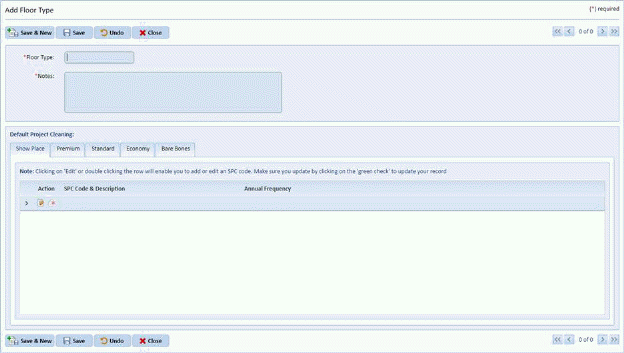
3. Enter the name of the new Floor Type.
4. Enter note(s) related to the floor type.
5. Specify the necessary cleaning codes (SPC Codes) in the SPC Code field for each Project Cleaning Level.
6. Specify how often the Floor Type is cleaned in the Annual Frequency field for each SPC Code.
7. If you
are satisfied with your new room type, click on the Save button . To cancel, click on the Undo button
 .
.
8. Click
on the Close button  to return to the
Floor Types List.
to return to the
Floor Types List.
9. Repeat steps 2 through 8 for all other floor types you want to add.