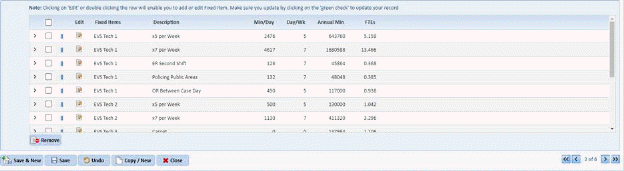
At the bottom of the Master Parameters, Between Case / Discharges, and Notes Tabs, there are a series of records. The columns are as follows:
•Fixed Items – This is a drop down menu. There are four different types of fixed items based on what type of cleaning needs to be done (daily work – divided into EVS Tech I and II, project work – considered EVS Tech III, and Other for non-EVS Tech based work but still part of the department.)
•Description – This shows a brief description of what each row is assigning FTEs to.
•Min/Day – This is the number of minutes per day it takes to do the work described. The majority of these numbers come from the reports mentioned in the earlier section.
•Days/Wk – This field shows how often the Fixed Items are done on a weekly basis.
•Annual Minutes – This contains numbers automatically generated by ES Optimizer based on the numbers you entered before.
•FTEs – This contains the FTE figures. ES Optimizer also generates the information in this column.
After all the master information has been entered in fields in the tabs mentioned, the next step is to enter the information obtained off the printed reports identified earlier (See Printing Staffing Reports).
The fixed items are staffing data that do not change or fluctuate very often. An example of this would be the amount of time it takes to the daily cleaning of the seven-day areas.
To add a fixed area, first define the Category: EVS Tech I, EVS Tech II, EVS Tech III, or Other.
EVS Tech I perform the daily cleaning of an area and utilize a cart.
EVS Tech II uses a labor-saving piece of equipment for completing daily cleaning tasks.
EVS Tech III does periodic/project work like floor finishing and burnishing.
Other is the designation for workers who do non-cleaning duties like waste handling.
These categories are pre-set within ES Optimizer, and they cannot be modified or changed
After entering all the necessary data, you can save your
scenario by clicking on the Save button . To cancel, click on the Undo button
 and start fresh.