 to open the
Buildings List.
to open the
Buildings List.The process below shows the how to add Building records in ES Optimizer:
1. Click
on the Buildings button to open the
Buildings List.
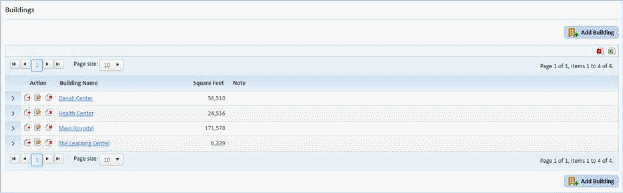
NOTE: The Buildings List will be empty when first starting to use ES Optimizer.
2. Click
on the Add Building button  to open
the form below:
to open
the form below:
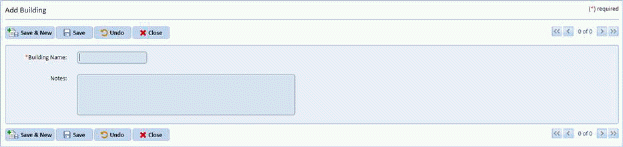
3. Enter the name of the building and any note (optional).
4. Save
the new building by clicking on the Save button  . To cancel, click on the Undo button
  .
.
5. Click
on the Close button  to return to the
Buildings List.
to return to the
Buildings List.
6. Repeat steps 2 through 5 for all other buildings you want to enter.
If you are interested in entering the floors and the subsections associated with the buildings, please check out the Floors and Subsections chapters of the user’s guide. The chapters provide detailed steps to add, delete, and edit floors and subsections.